
Why can a free utility index every file on a two terabyte drive before you finish typing, while the search box built into Windows is still thinking about it?
The answer settles most of the  Everything vs Windows Search argument in one line: the two tools are not doing the same job. Everything reads a list that Windows already keeps. Windows Search reads your files. One of those is instant by design, and the other never can be.
So here is the verdict before the evidence. For finding a file by name, Everything wins outright, and it is not close. For almost everything else people type into a search box, apps, settings, mail, and the words buried inside documents, Windows Search is the one that answers. The setup worth having is a split rather than a switch.
This is a research comparison built on what voidtools and Microsoft each publish about how their indexes work, not a lab benchmark. Both sets of numbers below come from the makers’ own documentation. We judged them on six things: how fast the first useful result appears, what each one can see by default, what it can find, what it costs in memory and disk, what setup and permissions it demands, and how far it reaches beyond a local Windows drive.
Why is Everything so much faster than Windows Search?
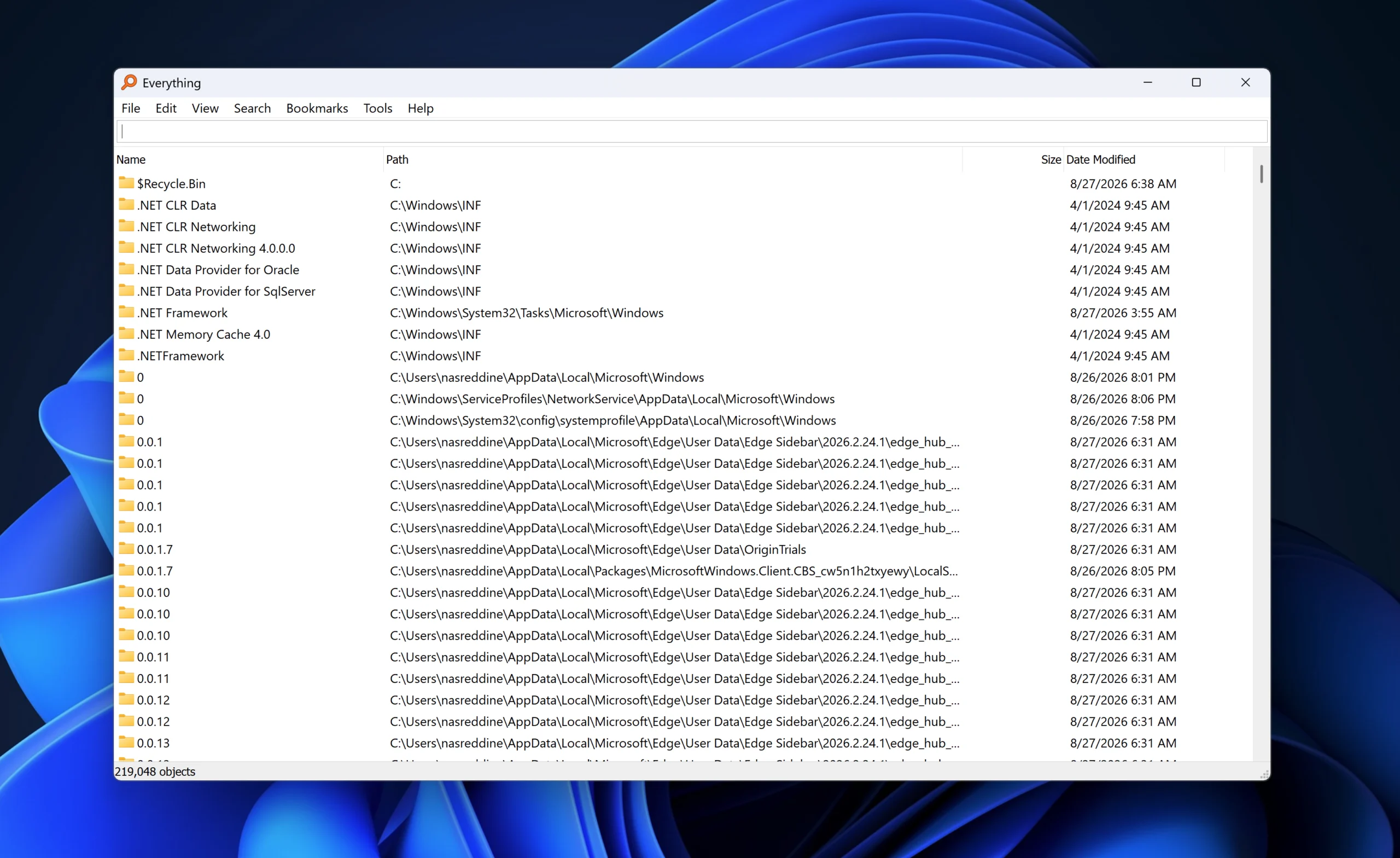
Because it barely indexes anything. That sounds like an insult. It is the entire trick.
Every NTFS drive already carries two things Windows maintains for its own reasons. The Master File Table is the address book: every file and folder on that volume, with its name, path, size and timestamps. The USN Journal is the logbook: a running record of changes made to that volume. Neither of them was built for search, and between them they hold exactly what a file search needs.
Everything reads the Master File Table once, straight through, then follows the journal for changes. It never opens a document. It never asks what is inside anything. The cost of that approach shows up in voidtools’ own figures: a fresh Windows install of roughly 250,000 files is indexed in about five seconds, and a million files takes around a minute. That same 250,000 file index sits in about 35 MB of memory and under 14 MB on disk. At a million files it grows to roughly 100 MB of memory and 45 MB on disk.
There is a second consequence people miss. You can close Everything, restart the machine, come back a week later, and its index is still correct, because Windows kept writing the journal whether Everything was running or not. It catches up on launch instead of rebuilding.
That is why results appear as you type rather than after you finish. There is no crawl happening in the background, no queue, nothing to wait for.
What Windows Search is doing while you wait
Microsoft’s index is trying to answer a much harder question. It catalogues file names and properties, and also the words inside files and mail, so you can search for a phrase you remember rather than a filename you do not. That promise costs real work: Microsoft’s own guidance says the first full indexing run can take a couple of hours before it settles into quiet background updates.
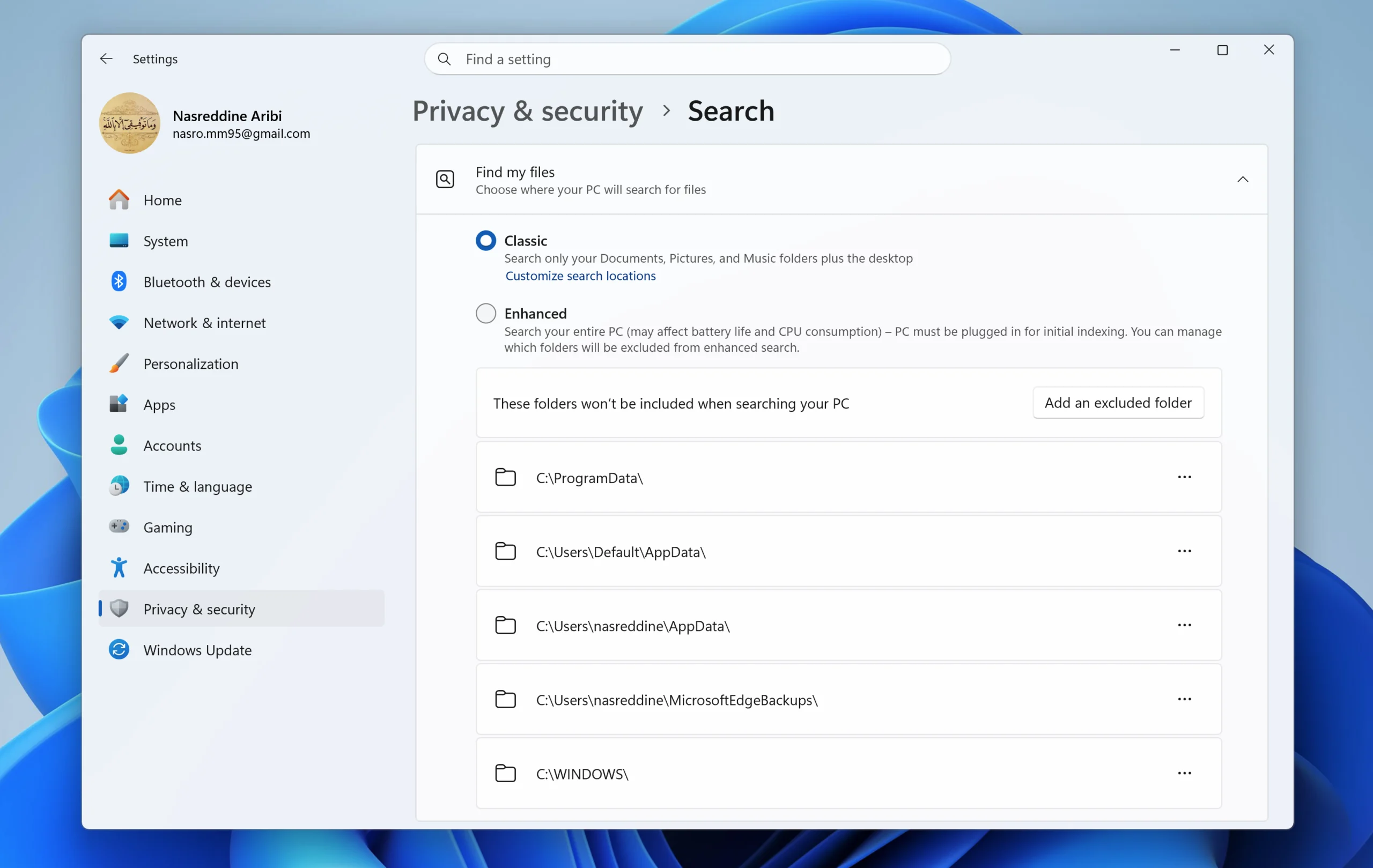
To keep that cost survivable, Windows narrows where it looks. The default, called Classic mode, indexes your Documents, Pictures and Music folders plus the desktop. Anything outside those locations is not in the index at all. Enhanced mode covers the whole PC instead, at a higher price in disk space and background activity, which is exactly why it is not the default.
This is the single most useful fact in this comparison, so it deserves a plain sentence: most of the time Windows Search fails to find a file, it is not broken. It was never looking there. Files on a second drive, a projects folder at the root of C, a games library, a NAS share, none of that is indexed under the default setting, so the search falls back to a slow crawl or returns nothing.
Add the web results that Windows mixes into Start menu searches by default, and a local file query ends up sharing a results list with Bing suggestions and store listings. That is a large part of why the box feels sluggish even when the file you want is indexed.
| Software | Everything | Windows Search |
|---|---|---|
| What it indexes | File and folder names, paths, sizes, dates | Names, properties, and the text inside files and mail |
| Where it looks by default | All local fixed NTFS volumes | Documents, Pictures, Music and the desktop |
| First index build | About 5 seconds for 250,000 files, about a minute for a million | Up to a couple of hours on the first run |
| Footprint | About 35 MB memory and under 14 MB disk at 250,000 files | Index grows with the volume of indexed content |
| Finds apps and Settings pages | No | Yes |
| Finds text inside documents | Only with a slow unindexed content search | Yes, in indexed locations |
| Non-NTFS drives and network shares | Added by hand as folders, scanned the ordinary way | Network shares are not indexed under the default setup |
| Setup | Install, with a service or admin rights for NTFS indexing | Built into Windows |
| Cost | Free | Included |
Where Everything stops
Everything indexes names, not contents. It has a content search, and reaching for it is the most common way new users end up disappointed, because that search reads files live instead of consulting an index. Voidtools’ own documentation is blunt about the result: content searching is extremely slow, and nothing appears on screen until every candidate file has been read. Point it at a whole drive and you can go make coffee. Point it at one folder, filtered to one file type, and it is usable.
Everything’s content search is not indexed. Restrict it to a single folder and file type before running it, or it will read every file on the drive before showing a single result.
The rest of the boundary is worth knowing before you install:
One more thing a cautious reader deserves: the service that gives Everything its speed runs with enough access to read the raw file table, and the program can also expose an FTP or HTTP server for remote searching. Those servers are off by default. On a shared machine, leave them off.
What Windows Search still does better
The honest part of this comparison. Everything loses four fights outright.
It cannot search inside your documents in any practical way, and Windows Search can, using format handlers that read PDFs, Office files and mail. When the question is which invoice mentions a reference number, Everything has nothing useful to say.
It does not know your apps or your system settings, so it cannot replace the Start menu.
It does not touch Outlook mail, which for a lot of people is the search they run most often.
And it needs nothing installed, no service, no elevated access, on any Windows machine you sit down at, including the ones where you are not allowed to install anything.
Everything is a specialist that beats the generalist at one task by an enormous margin. That is a different claim from beating it overall, and the pages that tell you to rip Windows Search out are quietly trading four abilities for one.
Running both on one machine
This is what a sensible Windows machine looks like once you stop treating it as a contest:
| What you are looking for | Use | How |
|---|---|---|
| A file you know the name of | Everything | Type part of the name, no wildcards needed |
| Text inside a document | Windows Search | Keep that folder in the indexed locations |
| An app or a Settings page | Windows Search | The Start menu, with web results off |
| Mail in Outlook | Windows Search | Leave the Windows Search service running |
| Files on a NAS or a mapped drive | Everything | Add the drive under Folders in Options |
| A USB stick formatted FAT32 | Everything | Add it as a folder and expect a scan rather than instant results |
Everything’s content search is not indexed. Restrict it to a single folder and file type before running it, or it will read every file on the drive before showing a single result.
What to install, and what to leave alone
Install Everything. It costs nothing, indexes in the time it takes to read this sentence, and answers the question people ask their computer most often, where is that file, faster than any built in tool on any operating system. On that question there is no serious argument.
Leave Windows Search alone. Fix its scope, mute its web results, and let it keep doing the parts Everything was never built for.
Two readers should ignore the first half of that advice. If you work on a locked down machine where you cannot install software or add a service, Everything’s speed is out of reach and Enhanced mode plus a tidier folder structure is your realistic upgrade. And if your files live mostly on a network share or in cloud storage that only downloads on demand, a filename index of your local drives solves less than you hope.
Two things are worth keeping an eye on. Microsoft has been publicly reworking Windows Search, and giving people a plain switch for web results would remove the loudest complaint about it. Voidtools’ alpha branch may eventually become the default download, which would hand new users content indexing, tabs and a dark theme without a detour through a forum. Neither would change the mechanism underneath, though. Reading a file table will always beat reading files, and that is why one of these tools is instant.
If you want the other side of a Tools and Utilities duel where the free option does not win quite so cleanly, 7-Zip vs WinRAR is the closer fight.