


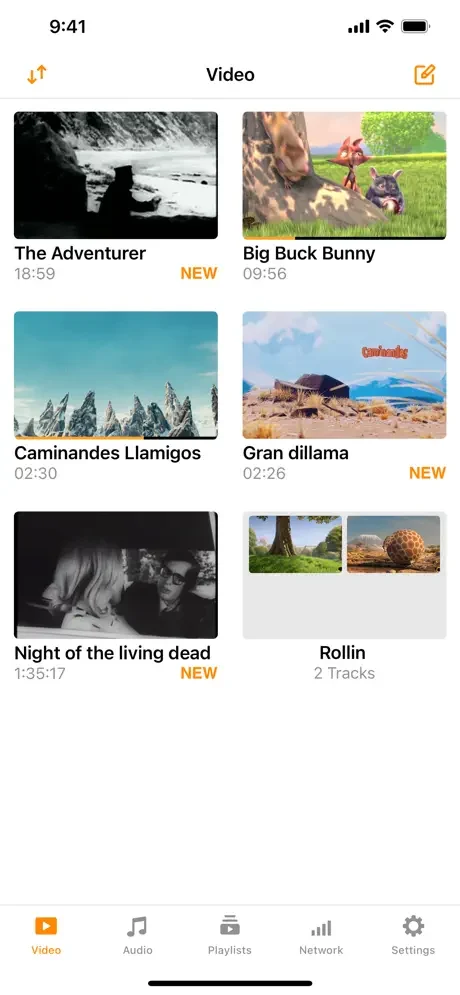
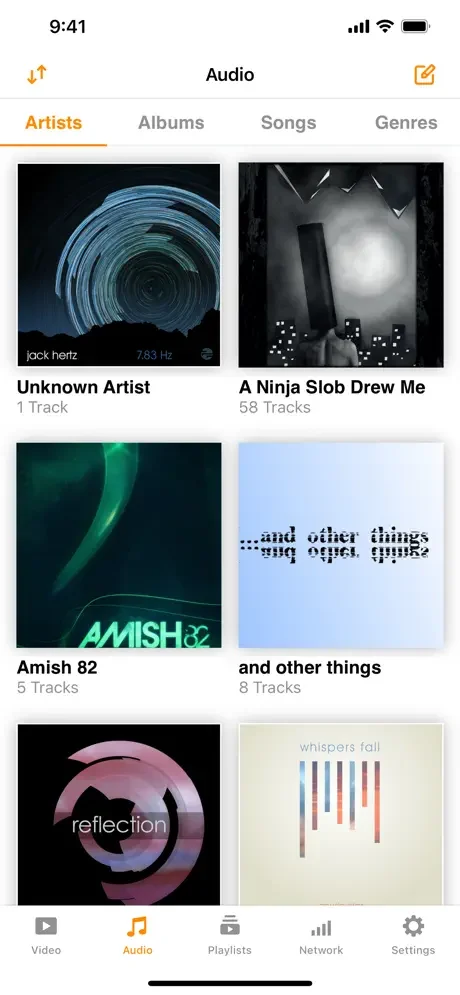
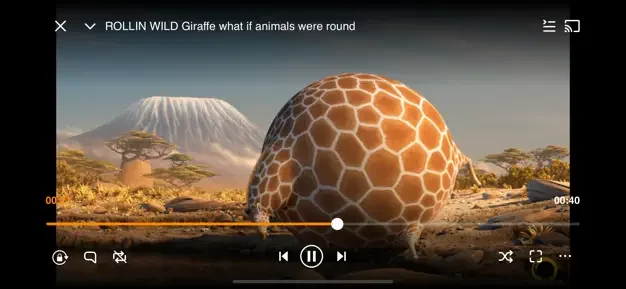
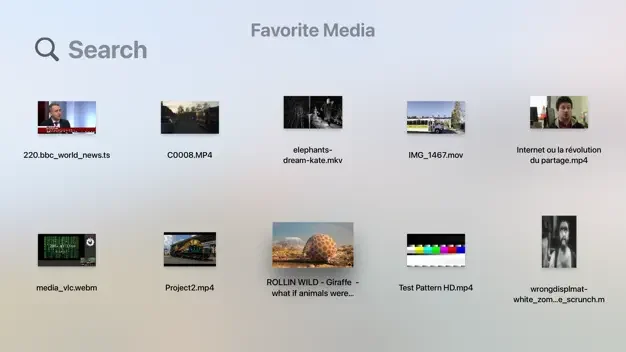
VLC media player has been the file that just works for so long that people forget it started as a scrappy way to stream video across a French engineering school’s network back in the nineties. VideoLAN’s cross-platform media player still opens on Windows, Mac, Linux, Android, and iOS, and it still refuses to make you buy or hunt down a codec pack before it plays something. That reputation is exactly why a VLC media player download stays a reflex install for so many people. The real question by now isn’t whether it plays your file, it’s whether a newer player would actually serve you better once it does.
Is VLC media player still the right default player to install?
VLC earns its default-install reputation because it plays almost everything without asking for a separate codec, something rival players still make you go find for oddball formats. VideoLAN builds its own decoders directly into the app, including ongoing work on next-generation video codecs, rather than leaning on whatever the operating system happens to have installed. That detail solves more real problems than it gets credit for. Independent troubleshooting guides point out that when a VLC file refuses to open, the cause is almost always a broken or incomplete download, not a missing codec, because the decoding tools already live inside the program itself. For anyone who just wants one player that opens whatever lands in a downloads folder, VLC’s format range and zero cost still outweigh its dated interface, while viewers chasing a slicker layout or heavier 4K and 8K workloads should look at a rival first.
Format and codec support without extra downloads
VLC opens MP4, MKV, AVI, WebM, and most other container and codec combinations without a separate download, covering H.264, HEVC, VP9, and AV1 out of the box. Audio formats fare the same way: MP3, AAC, FLAC, and a long list of less common formats play without extra plugins or a paid unlock. The player also handles optical media directly, reading DVDs and video CDs the way a dedicated disc player would, and it can pull in damaged or partially downloaded files that other players simply refuse to open at all. Subtitle support runs deep too, covering SRT, SSA, and MicroDVD formats along with closed captions, with sync controls sitting right in the playback bar rather than buried three menus deep. None of this needs a subscription, a trial period, or an unlock code. It is the same feature set whether you are watching a single downloaded movie file or managing a folder of mismatched formats collected over years of downloads.
Streaming, conversion, and network playback
Beyond local playback, VLC doubles as a lightweight conversion and streaming tool, which is unusual for something that costs nothing. The built-in Convert and Save option turns a file from one format into another in a few clicks, useful for shrinking a video before uploading it somewhere with stricter format rules. VLC can also open a stream directly from a network address, cast playback to compatible devices, and act as a basic streaming server on a local network, features that usually mean installing separate software elsewhere. None of it sits behind a paywall; the same conversion and streaming tools ship in the exact free build that everyone downloads. The tradeoff is depth: the conversion presets are basic next to a dedicated encoder, and the streaming setup expects a little technical patience rather than a guided wizard walking you through it.
Skins, extensions, and hardware-accelerated playback
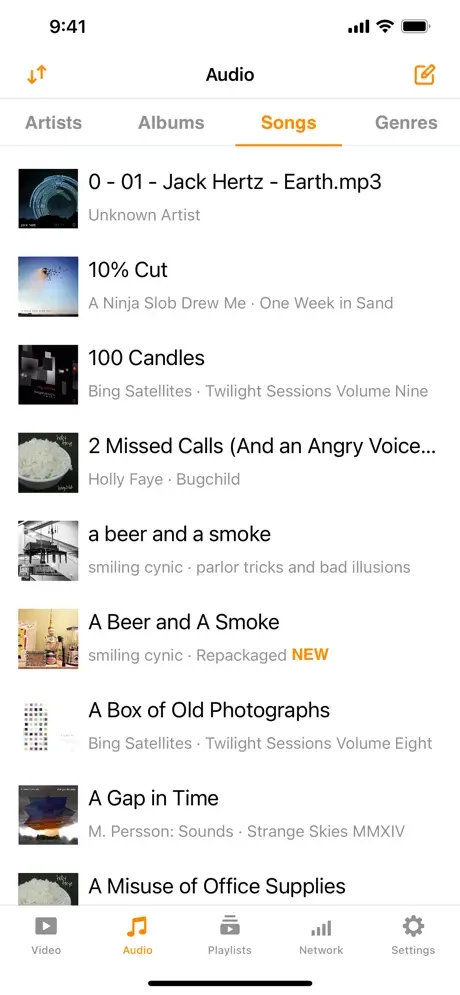
The default interface is plain by design, but VLC accepts custom skins and extensions built with its own skin editor, so the look can change considerably without touching the player underneath. Extensions add small extras like lyric lookups or streaming shortcuts, pulled from VideoLAN’s own add-on catalog rather than a random third-party plugin store. On playback itself, VLC uses hardware decoding where the graphics card supports it and falls back to software decoding automatically when it doesn’t, which is a big part of why it still runs acceptably on older laptops that would struggle with a heavier, more modern player.
VLC versus PotPlayer, KMPlayer, and MPC-HC
PotPlayer trades VLC’s cross-platform reach for a Windows-only build with a more customizable interface and finer playback controls, which appeals to anyone who wants to tune the picture and sound rather than just press play. KMPlayer covers Windows, Android, and iOS the way VLC does, and adds an automatic codec finder plus extra skins, though its fuller feature set sits behind an optional paid upgrade. MPC-HC stays closest in spirit: another free, open source, no-frills player, but one that leans on an external codec pack for some formats and, like PotPlayer, is limited to Windows.
| Product | Platforms | Format Handling | Customization | License |
|---|---|---|---|---|
| VLC | Windows, Mac, Linux, Android, iOS | Built-in decoders cover nearly every format | Skins and extensions | Free, open source |
| PotPlayer | Windows only | Wide native codec support | Deep filter and layout customization | Free, closed source |
| KMPlayer | Windows, Android, iOS | Automatic codec finder | Skins with an optional paid tier | Free with optional upgrade |
| MPC-HC | Windows only | Relies on an external codec pack for some formats | Minimal, no built-in customization | Free, open source |
Anyone who lives entirely on Windows and wants a more modern, tunable interface has a real reason to try PotPlayer instead. Anyone who needs the same player to behave identically on a phone, a Mac, and a Linux machine has a much harder time finding a real substitute for VLC.
Playback speed and how VLC handles demanding files
VLC uses hardware decoding when the graphics card supports it and drops back to software decoding automatically when it doesn’t, which is why it still runs acceptably on aging hardware that struggles with newer, heavier players. That same flexibility becomes a limitation at the high end: on very large 4K or 8K files, some setups show more stutter and dropped frames in VLC than in players built specifically around modern hardware pipelines. Background resource use stays modest during ordinary playback, and the app rarely lingers as a background process once a file is closed. For everyday downloads, movies, downloaded shows, and music libraries, VLC’s performance is a non-issue; it is only at the outer edge of resolution and bitrate that a purpose-built rival tends to pull ahead.
A dependable default that only some viewers should skip
VLC still earns its spot as the player most people install first: it opens nearly any format without extra downloads, costs nothing, and behaves the same way across desktop and mobile. The rough edges are real too, a dated interface and occasional strain on very high-resolution files, so anyone who cares most about a polished layout or heavy 4K and 8K workloads has good reason to compare a rival before committing. For everyone else, especially anyone tired of hunting down the right codec for one stray file, VLC media player remains worth the download.