Mostly no. A PC cleaner will not make a healthy computer faster, and the one job in the bundle that genuinely helps is already sitting in Windows, free, on the machine you are reading this on. That is not the answer the category sells. It is also not the answer most pages give you, because most of the pages answering this question belong to companies with a cleaner to sell.
The confusion starts with the word cleaner. It sounds like one job. It is four unrelated jobs sold in a single window, and they do not deserve the same verdict.
What sits behind the Clean button
Open almost any of these programs and you are looking at four separate tools wearing one coat.
The last one can be dismissed quickly. Windows keeps data in memory on purpose, because reading from RAM is faster than reading from a drive. A tool that flushes that memory has not freed anything useful. It has thrown away work the system has to redo the next time you open the program. The gauge goes down, the machine gets no quicker, and on a laptop you have spent a little battery to achieve it.
The other three are worth taking one at a time.
A PC cleaner is four different tools in one window: junk file deletion, registry cleaning, startup control and memory flushing. Only startup control reliably affects speed, and Windows already has it built in.
One thing to know before installing any of them. Most are free to download, and an installer carrying offers for other software is one of the ways the different kinds of free software pay for themselves.
In 2020 Microsoft added a Defender detection that flagged certain free and trial CCleaner installers as a potentially unwanted application, not for anything the program itself did but for the other publishers’ products packaged alongside it, and the entry was later renamed to point at the bundler rather than at the program. The rule behind it is that Microsoft’s potentially unwanted application protection triggers whenever software offers to install other software that is not made by the same publisher and is not needed for the program to run. We went through that episode and what came before it in our look at whether CCleaner is safe. The lesson holds across the category: read the install screen, and take the custom option.
Junk files: free space, not free speed
Deleting temporary files does exactly what it says. You get storage back, sometimes several gigabytes after years of use. What you do not get is speed, and the reason is simple. A file sitting unopened on your drive costs your computer nothing. Windows is not reading it. Your processor is not thinking about it. Storage is not a queue that everything else has to walk past.
Some of that deletion has a small cost, too. A browser cache exists so pages you visit often load from your own drive instead of the network. Wipe it and the next few days of browsing are marginally slower while it rebuilds. That is a fair trade for privacy. It is not a speed gain.
There is one real exception, and it is why the myth has survived so long. A drive that is close to full genuinely does slow down. On an SSD, data cannot be overwritten in place. The drive has to erase a block before writing to it, the controller needs a supply of free blocks to do that efficiently, and it needs room for background housekeeping. Squeeze that space and the controller works much harder for every write, which you feel as sluggishness across the whole system.
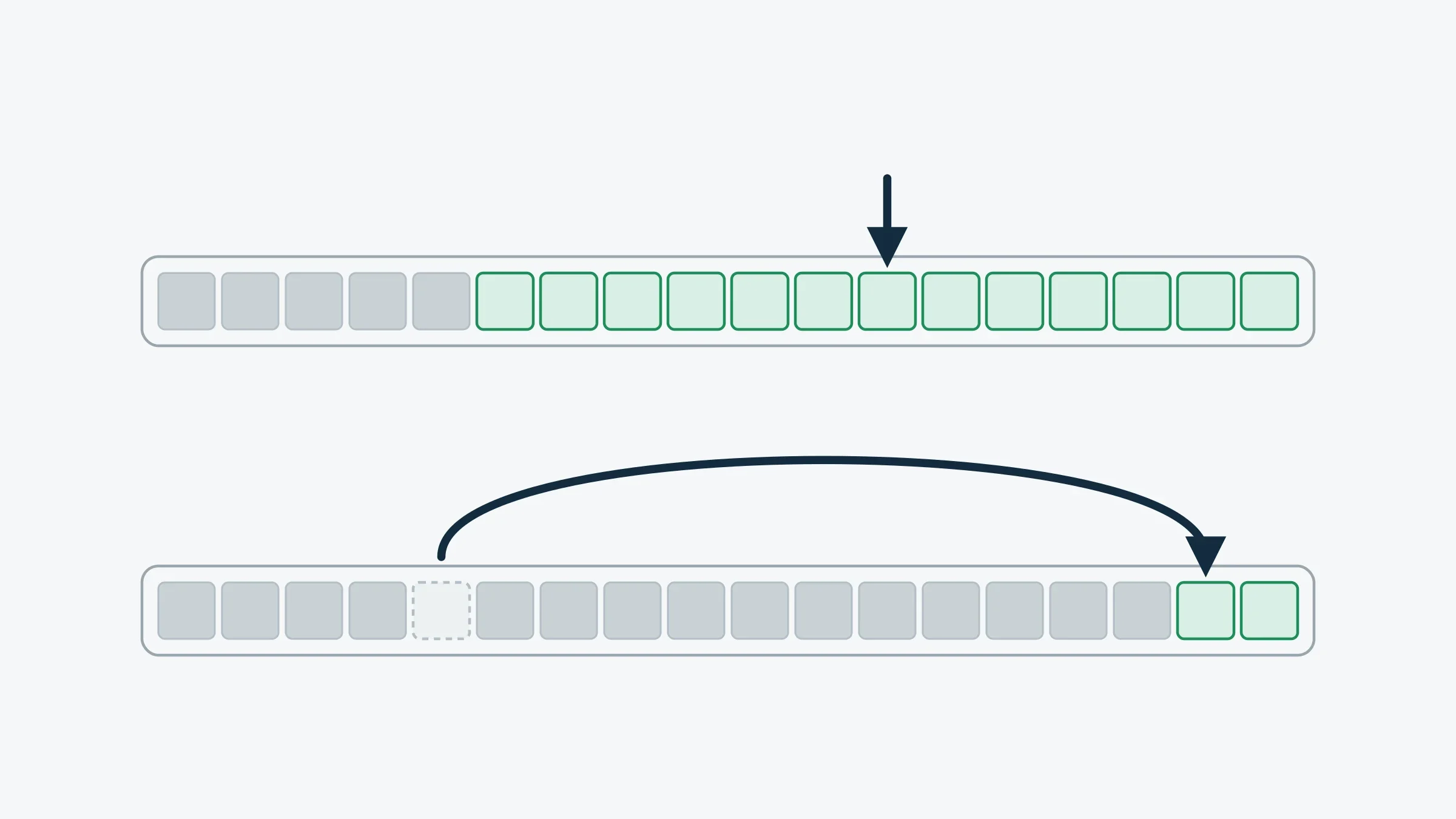
So on a nearly full drive, clearing space produces a real improvement. Notice what actually happened, though. The junk was not slowing the machine down. The drive was starving, and any gigabytes would have fed it. Deleting one folder of old video files does the same job as an hour with a cleaning suite.
Registry cleaning: the job Microsoft will not support
The registry is the database where Windows keeps settings for hardware, software and user preferences, and the system reads from it constantly in the background. Uninstalled programs leave entries behind. Cleaners find those orphans and delete them, and the pitch is that a tidier database is a faster one.
Microsoft’s position is unusually direct for a company that rarely comments on other people’s software. Its support policy on registry cleaning utilities states that it does not support their use, that serious problems can occur when the registry is modified incorrectly by these tools, that the resulting instability may require reinstalling the operating system, and that Microsoft makes no warranty about their performance or reliability. The company shipped a registry cleaner of its own once, back in the Windows 98 era, and stopped.
Weigh the two sides. On the upside, a few hundred stale keys removed from a database holding hundreds of thousands of them, an effect whose case rests on marketing copy rather than on measurement. On the downside, a small chance of removing something a program or a driver still needed, with a bad afternoon at the other end of it. The odds of harm are low. The odds of benefit are lower.
Startup programs: the one that works
Here is where cleaners earn their reputation, and where the reputation was borrowed.
Trimming what launches with Windows is one of the few changes that produces an obvious difference. Every program that starts with the system takes a slice of boot time, then stays resident, checking for updates or syncing something while you are doing other things. Cut ten of those on a machine nobody has ever looked after and it feels like different hardware. Cleaning suites do include this control, so people run the whole suite, see a real improvement, and quietly credit the junk file counter that scrolled past on the way.
Windows has done the same thing for years. Task Manager has a Startup apps tab listing every program that launches with the system, with a rating of what each one costs at boot, and a switch to turn it off. Settings carries the same list under Apps. No installer, no subscription, no scan.
There is an awkward postscript. Cleaning suites tend to install a background agent and a scheduled scan of their own, so a program bought to reduce startup load quietly joins the queue it was hired to measure.
What is slowing your computer down
Almost none of the real causes are files.
Cleaning software addresses one and a half of those. Malware needs a scanner, and it is the cause people most often mistake for general old age: a machine that got slow suddenly, rather than gradually, is usually infected rather than cluttered. Heat needs a screwdriver and a can of compressed air. The two changes that rescue an ageing machine are hardware, moving the system onto an SSD and adding RAM. Neither is exciting and both cost more than a licence, which is exactly why the cheaper story sells so well.
The cleanup tools already on your machine
If the goal is a tidy system rather than a faster one, Windows covers it without help.
Storage Sense lives in Settings, under System and then Storage. Microsoft’s documentation describes it running automatically when the device is low on space, clearing temporary files, and emptying the Recycle Bin after a period you set. You can also run it on demand, or put it on a weekly schedule and stop thinking about it.
Disk Cleanup, the old cleanmgr tool, is still in Windows for the deeper items Storage Sense leaves alone. That includes previous Windows installation files kept after a feature update, which can run to many gigabytes on a machine that has been upgraded a few times.
Task Manager handles startup programs. Windows Security handles the malware case. Microsoft also publishes PC Manager, its own free maintenance app, which gathers cleanup, storage, startup control and security shortcuts into one dashboard.
Notice what that app includes and what it leaves out. The company that refuses to support registry cleaning is perfectly willing to ship a cleanup tool, a startup manager and a storage assistant. The line Microsoft draws between them is the same line this article draws.
None of which makes cleaning software worthless. Clearing cookies and cached data across several browsers in one pass, or removing a program along with the folders and settings it leaves behind: those are real jobs, and a good utility does them faster than clicking through Windows will. For the second of those, our IObit Uninstaller page covers what a dedicated remover adds over the built-in one.
Choose a cleaner for the work it does, not for the work it advertises. If you want to see exactly which tools one of them puts in front of you before you install anything, the CCleaner page in our library breaks them down function by function. Just do not choose one expecting a slow computer to wake up.