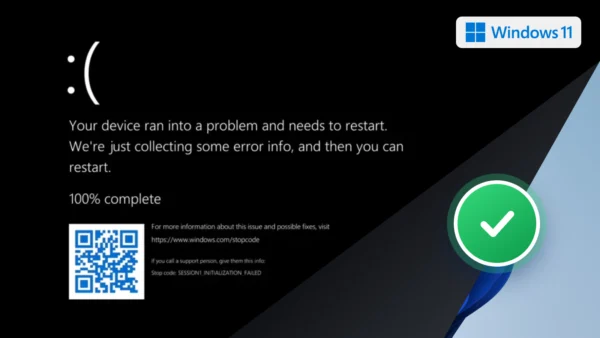
The scan finishes, your antivirus reports “threat removed,” and you get on with your day. Then you restart the computer and the same alert is back. Same detection name, same file path, sometimes within seconds of reaching the desktop. Or worse: the machine is clearly sick, ads where no ads should be, a browser that opens pages you never asked for, and the scan comes back clean.
Both situations mean the same thing. Your antivirus has lost this particular fight, and running the same scan a fourth time will not change the score. What works is escalating in the right order, from the least destructive fix to the last resort. That order is this guide.
Why does malware keep coming back after removal?
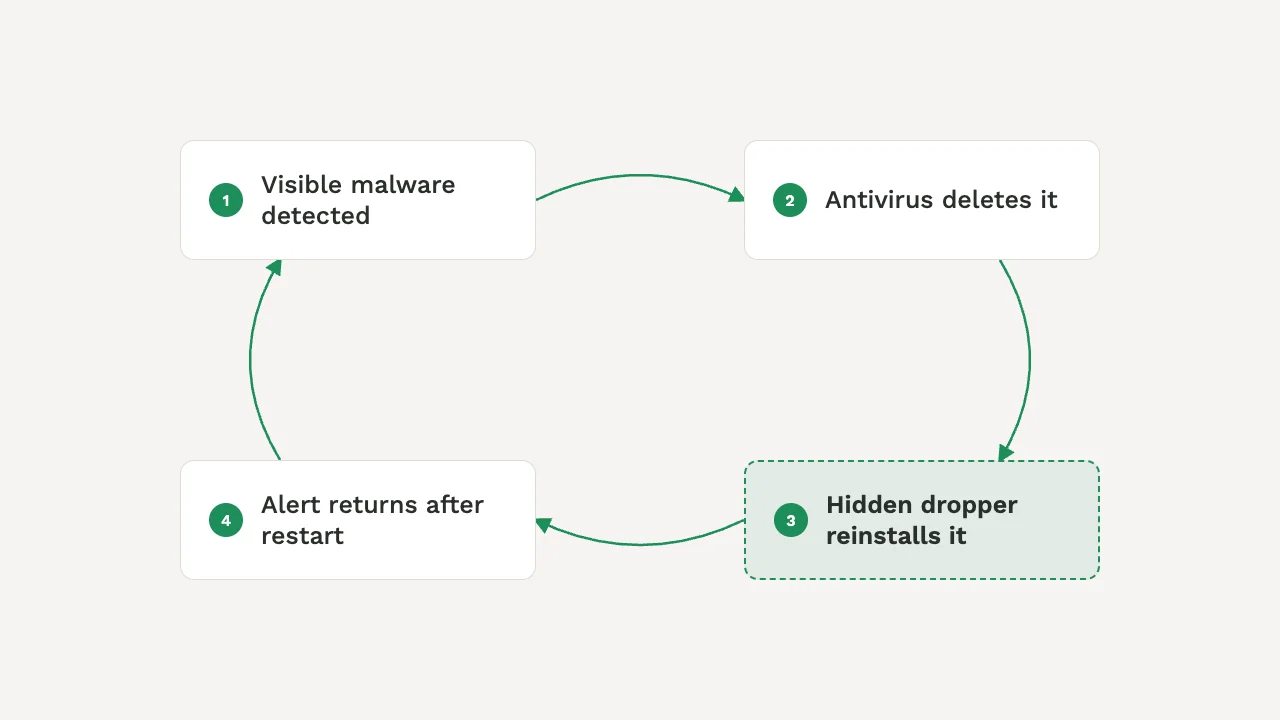
Almost always because the removal was incomplete. Modern malware rarely lives in one file. It plants a second component, a dropper or a scheduled task or a service, whose only job is to reinstall the visible part after your antivirus deletes it. The alert you keep seeing is the reinstallation being caught, over and over, while the thing doing the reinstalling stays invisible.
Microsoft’s own troubleshooting guidance describes exactly this loop: a detection that returns right after every restart usually points to a hidden component quietly reinstalling the malware your antivirus keeps removing. Rootkits push the same trick deeper, hooking into Windows so that scans running inside Windows cannot see them at all.
There is a second, less technical reason: reinfection. If the malware arrived through an installer from an untrustworthy source, a poisoned email attachment, or a browser extension you still have installed, cleaning the file without closing the door just schedules the next infection.
The fixes below are ordered from least destructive to most. Work down the list and stop when the machine stays clean.
Before you touch anything
A few minutes of preparation prevents most of the ways this process goes wrong.
You will need administrator access on the infected PC, and for the later fixes a second clean computer plus an empty USB stick of at least 8 GB. Laptops should stay plugged in; offline scans do not pause for a dead battery.
Fix 1: Safe Mode, then a second opinion
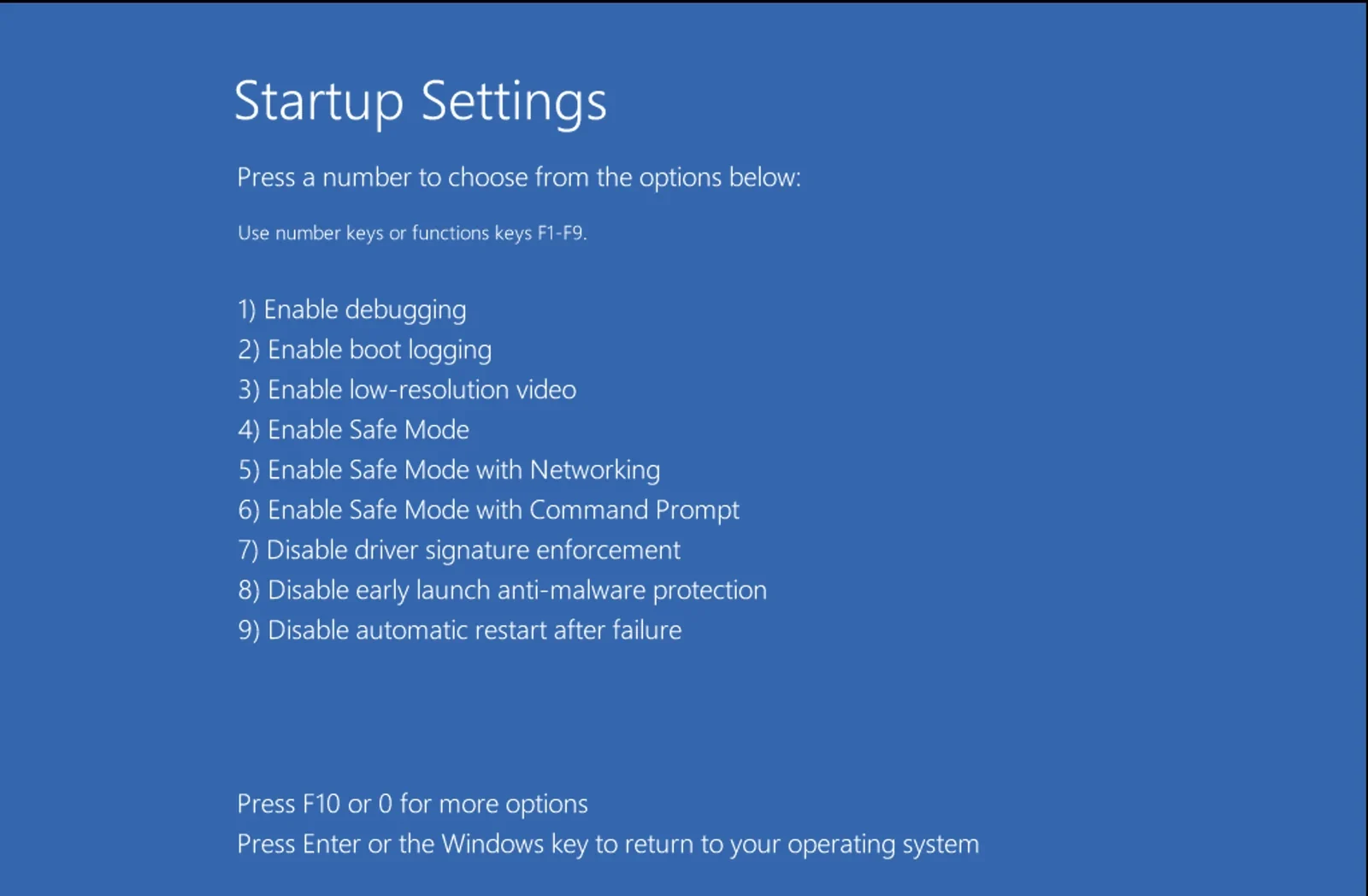
Safe Mode starts Windows with the bare minimum of drivers and services, which keeps most malware from loading and defending itself. It is the cheapest escalation and it resolves a surprising share of stubborn cases.
Did it work? If the scan in normal mode comes back clean and stays clean after another restart, you are done with the removal half of this guide. If the detection returns, bring in a different engine.
No single engine catches everything, and signature-based scanning has blind spots by design. When your installed antivirus keeps missing or half-removing something, a scanner built on a different engine sees the machine with fresh eyes.
Did it work? Adware and browser hijackers usually die here. A detection that still survives both engines has persistence deeper than the normal Windows session can reach, which is what the next fix is for.
Fix 2: Microsoft Defender Offline
This is the specific cure for the restart loop. Defender Offline reboots the machine into a small trusted environment and scans the disk from outside Windows, where rootkits and boot-time malware have nowhere to hide and nothing to hook.
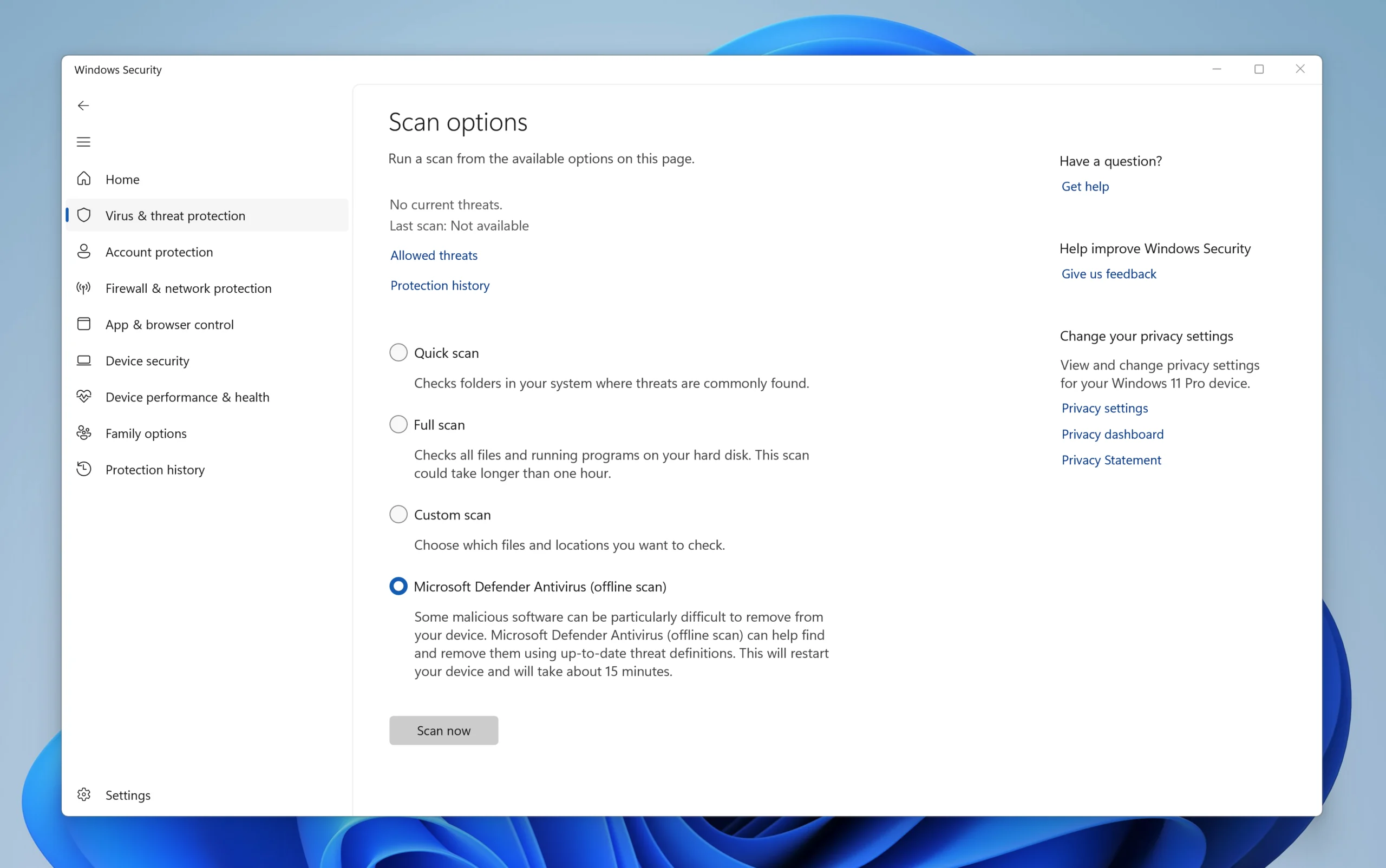
Did it work? For recurring detections this is the highest-percentage fix in the whole guide. If the alert that came back after every restart is now gone and stays gone, the hidden component is dead. If Defender Offline itself refuses to run, that refusal is information: something is interfering at a level that makes the rescue USB in Fix 4 the correct next move. A useful stopgap on a machine where Defender is broken is Microsoft Safety Scanner, a standalone download that expires ten days after you fetch it. The expiry is deliberate. It forces you to download a copy with current detection data instead of trusting a stale one.
Fix 3: Hunt the leftovers by hand
Scanners remove malware; they are less thorough about the doors malware opened. Five minutes of manual checking closes them. Everything here is reversible, but only remove entries you can actually identify.
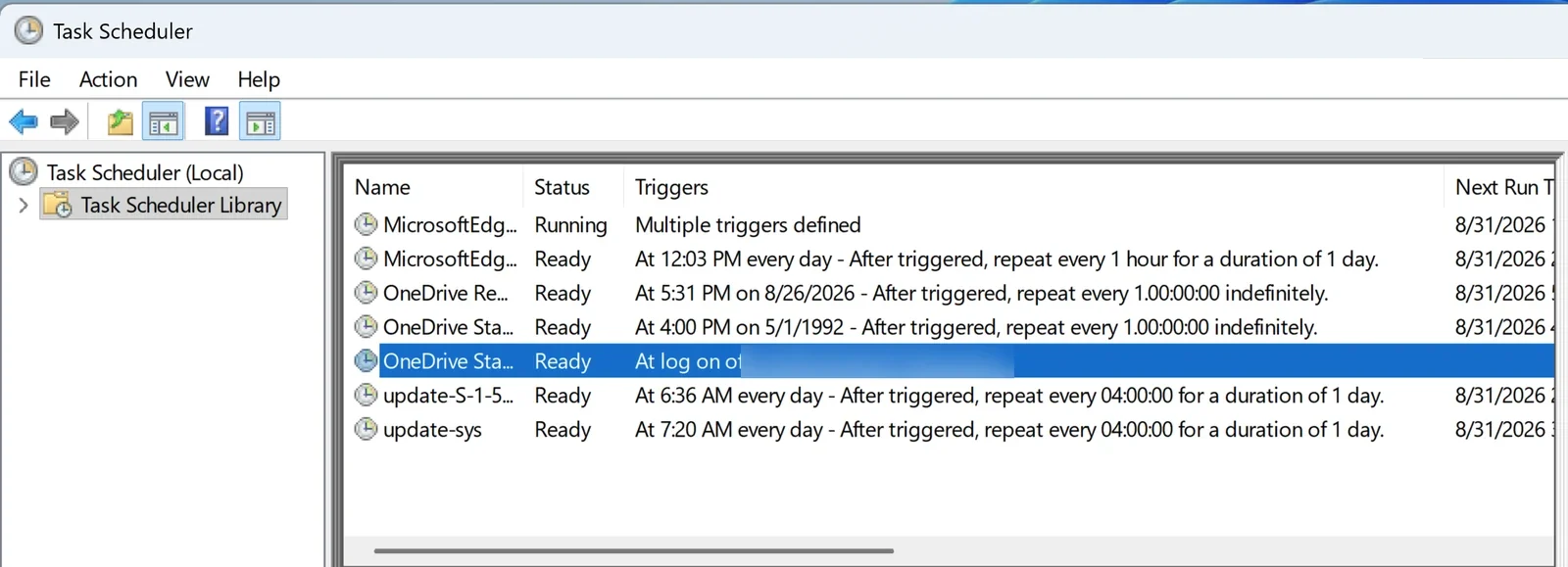
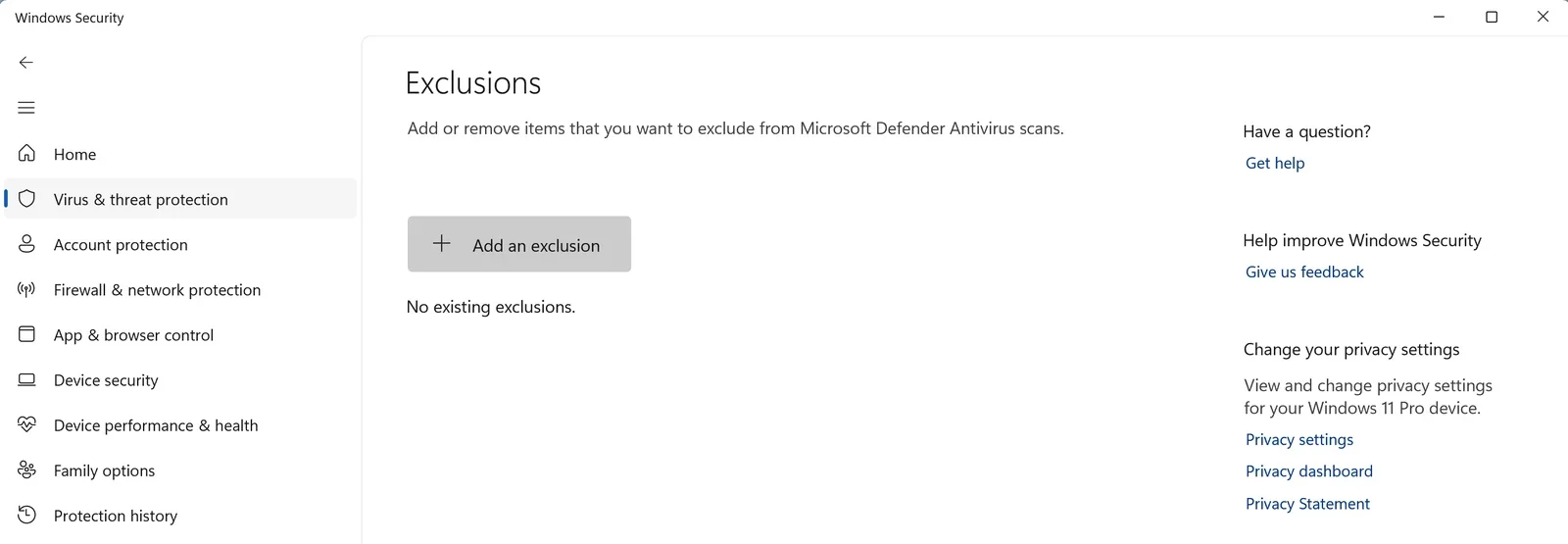
Did it work? Restart and watch. If the machine stays clean, the combination of Fix 2 and this cleanup ended it. Take the passwords step at the end seriously anyway.
Fix 4: A rescue USB built on a clean machine
When malware blocks your scanners, breaks Defender Offline, or Windows barely boots, stop fighting on infected ground. A bootable rescue drive starts the computer from a separate operating system on the USB stick and scans the Windows installation while it is completely inert.
Build the rescue drive on a clean computer, never on the infected one. Anything created on a compromised machine has to be treated as compromised itself.
Did it work? A rescue environment is the strongest scanning position a home user has. What survives an outside-the-OS scan with two different engines is either genuinely gone or beyond scanning as a strategy, which brings us to the honest part.
If nothing worked: the reset, done right
There is a point where continuing to clean costs more than starting over, and it says something that most guides refuse to name it. If you have been through Safe Mode, two second-opinion engines, an offline scan, manual persistence cleanup, and a rescue USB, and the infection is still standing, the remaining moves are forensic work, not home troubleshooting. A clean reinstall of Windows is not defeat. It is the one fix with a known outcome.
A reset or reinstall erases installed programs and, depending on the option chosen, your files. Back up documents and photos first, to a drive you then scan from another machine, and never back up programs or installers from the infected system.
One caution on a tool people reach for at this stage: System Restore is not a removal method. Restore points can carry the infection right back, and malware frequently deletes or poisons them anyway.
Removal without closing the entry route is a subscription, not a cure. The same door opens twice. Keep Windows and your browser updated, since unpatched holes are the quiet half of how machines get reinfected. Be honest with yourself about where the infection came from; if it rode in with a bundle from a shady mirror, the fix is changing the source, and the Security & Privacy section of the Softoto library exists so that the genuine build, delivered straight from the developer’s servers, is always one click away. And keep one on-demand second-opinion scanner installed. The day your main antivirus hesitates again, you will already own the tiebreaker.
If you are still choosing that main protection, our free antivirus roundup does the comparing for you; whichever you pick, keep Malwarebytes around as the tiebreaker. It earned its place in this guide the hard way, on machines that were already losing.