The new motherboard goes in, the machine posts, Windows boots, and the Activation page says you are not activated. You run the troubleshooter, it asks you to sign in, and it finds nothing. The license was real, it was paid for, and it was attached to the board now sitting in an antistatic bag on the desk.
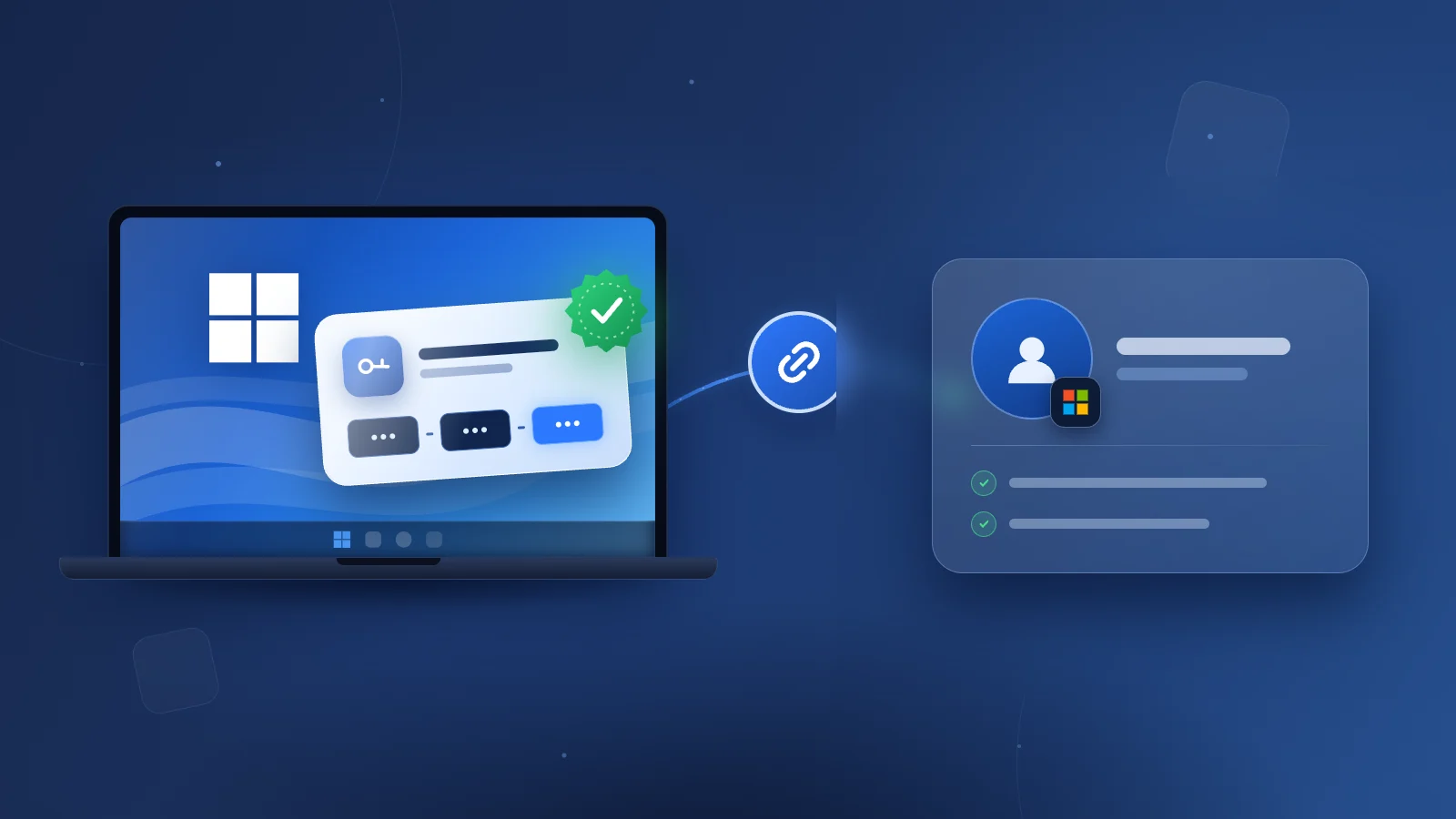
That is the whole reason to link your Microsoft account to your Windows digital license, and it only works if you do it while Windows is still activated. Doing it on a machine that still works is what saves you the conversation with support later. The steps below cover Windows 11 and Windows 10, including the part almost nobody explains: how to do this without giving up your local sign-in.
What Has to Be True First
Linking does not create a license, upgrade one, or turn a locked license into a portable one. All it does is give Microsoft an account-based way to find a license that already exists, so the Activation troubleshooter has something to look up after your hardware changes.
Four things have to be in place:
Have the password ready even if you think you do not use one. Windows asks for it partway through, and that is where people stall.
Read Your Activation Status Properly
Start by finding out whether any of this is necessary. It often is not.
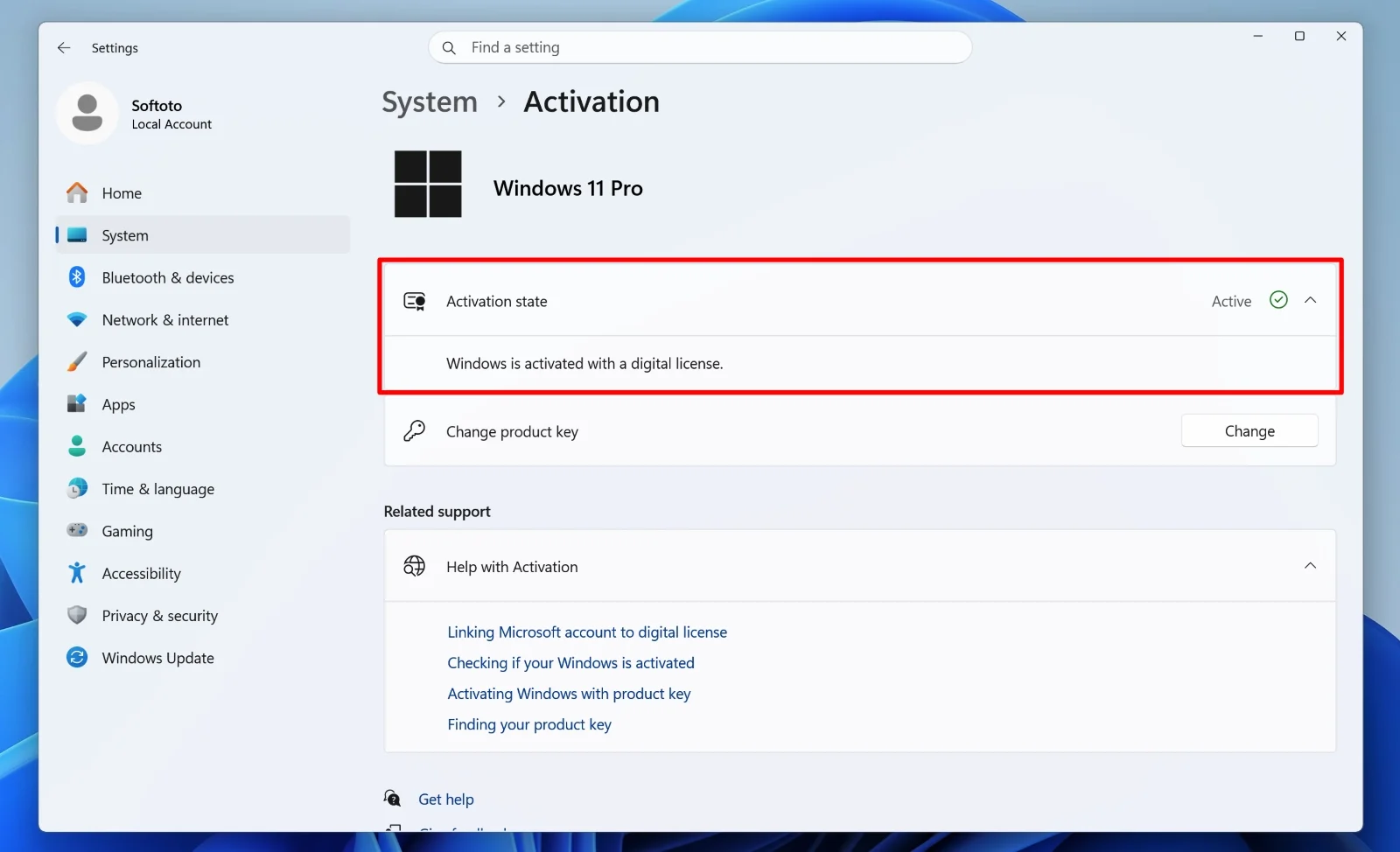
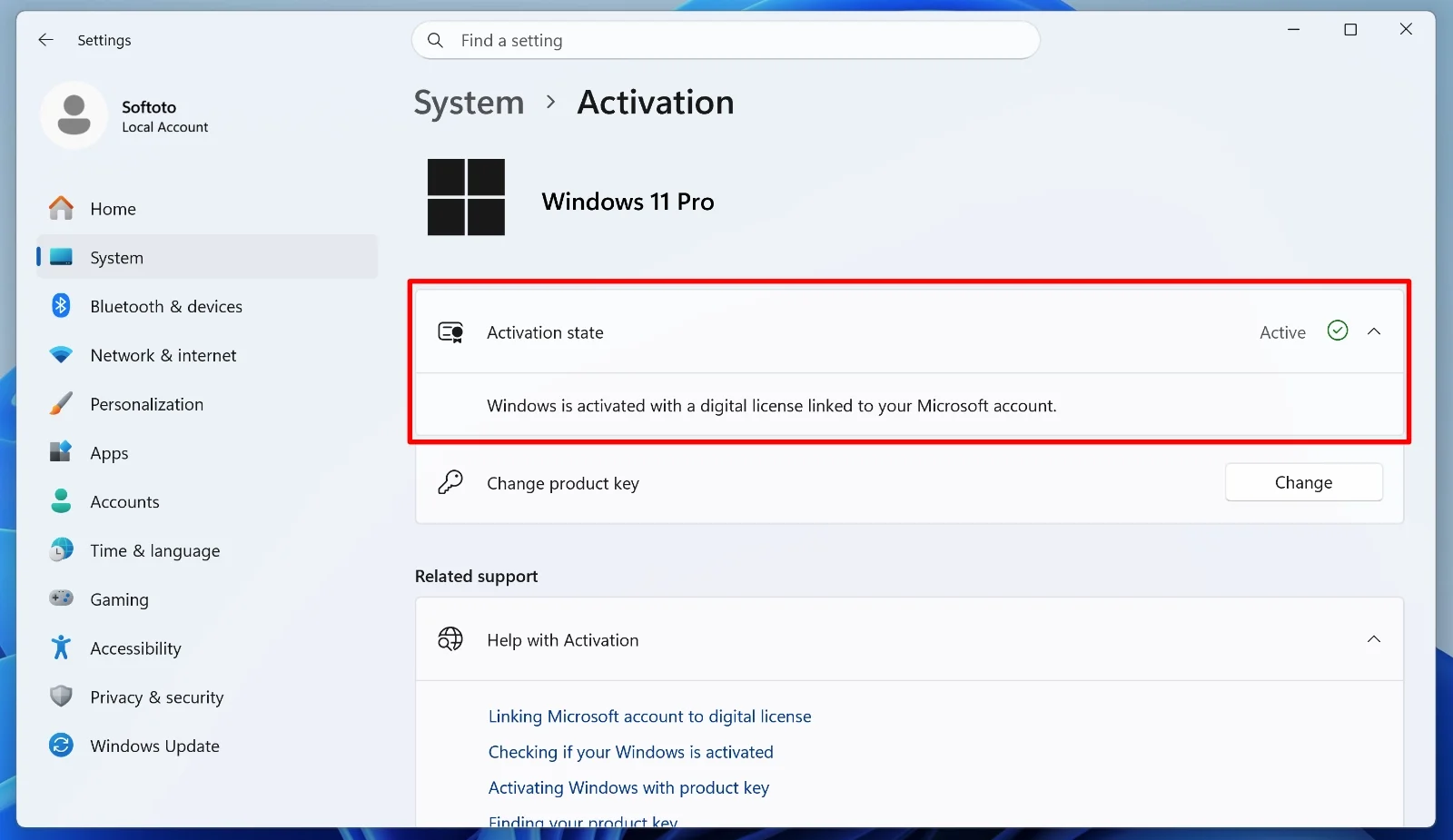
Three lines matter:
If you want to know which channel your license came through, right-click the Start button, open Terminal as administrator, and run slmgr /dli. A small window reports the description. Retail means the license can move to different hardware. OEM means it came preinstalled and belongs to the machine it first activated on. Linking is still worth doing on an OEM license because it smooths reinstalls on the same PC, but it will not make that license portable.
Two Ways to Link the Account
Most guides give you one route: convert your Windows profile to a Microsoft account. It works, and it is the route Microsoft documents. It is also the reason people put this off, because plenty of us prefer a local sign-in and have good reasons for it. There is a second route.
Before either one, a note on a button that wastes a lot of people’s time. On the Activation page you may have read about an “Add an account” option. On Windows 11 it only appears once the administrator you are signed in as is already a Microsoft account, so if you are on a local account you will hunt for a button that is not there. On Windows 10 the Activation page does show an “Add a Microsoft account” section, and it asks for your local password as part of the process.
Route one converts your existing profile:
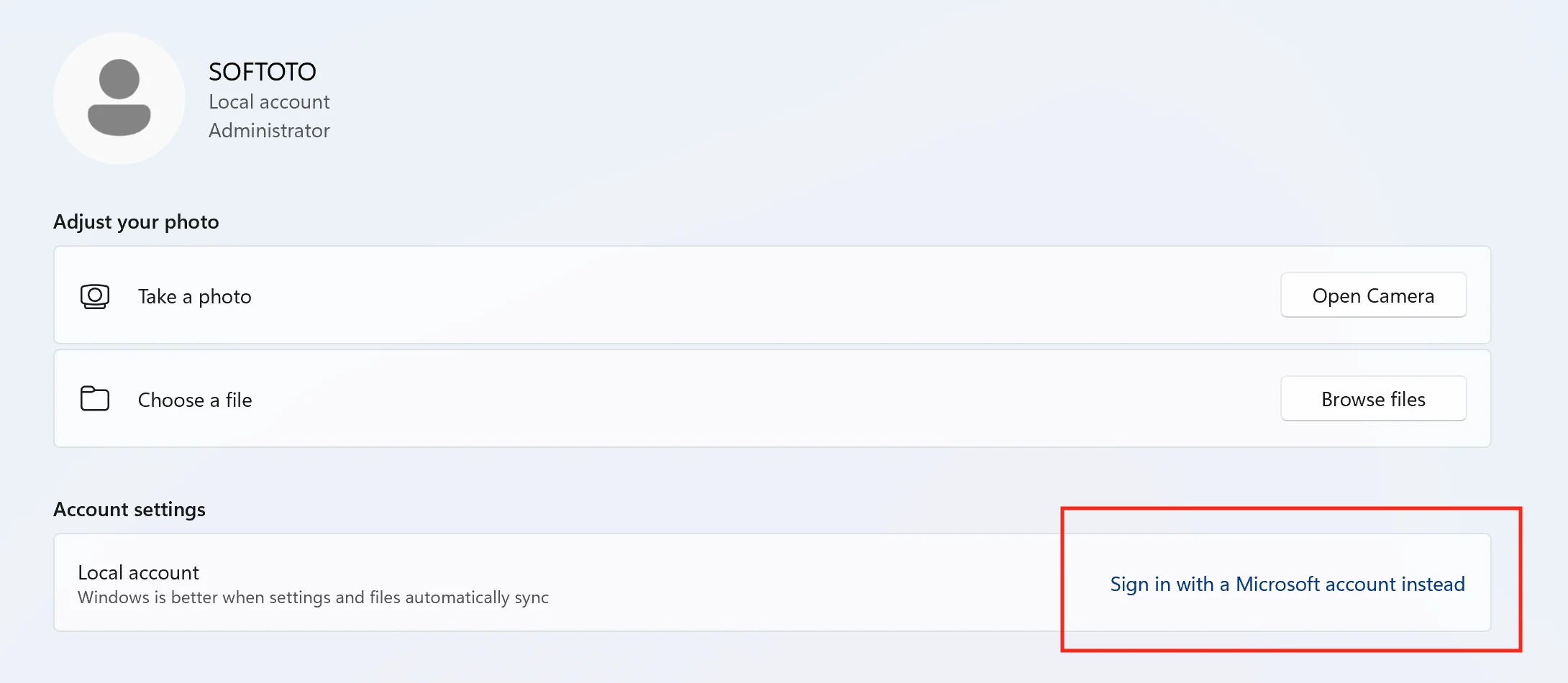
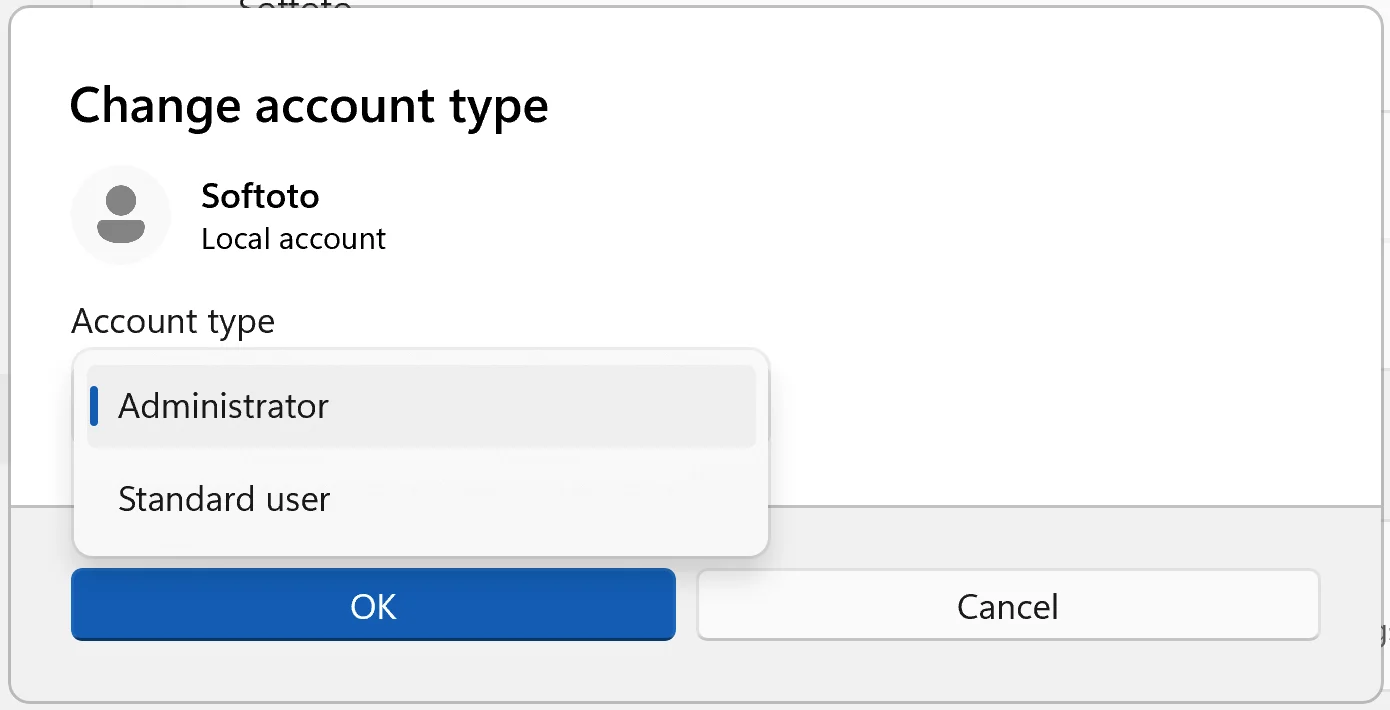
Route two leaves your daily profile alone and adds a second administrator that carries the account:
Either way, the target wording is “Windows is activated with a digital license linked to your Microsoft account”. If it has not changed, restart and look again.
Proof the Link Stuck
The line in Settings is a status message, not the record. The record lives on Microsoft’s side, and you can see it.
Open the devices page of your Microsoft account in a browser, sign in with the same account, and look for this PC by its device name. If it is listed, the link exists where it counts. If it is not, the link did not take, whatever Settings says.
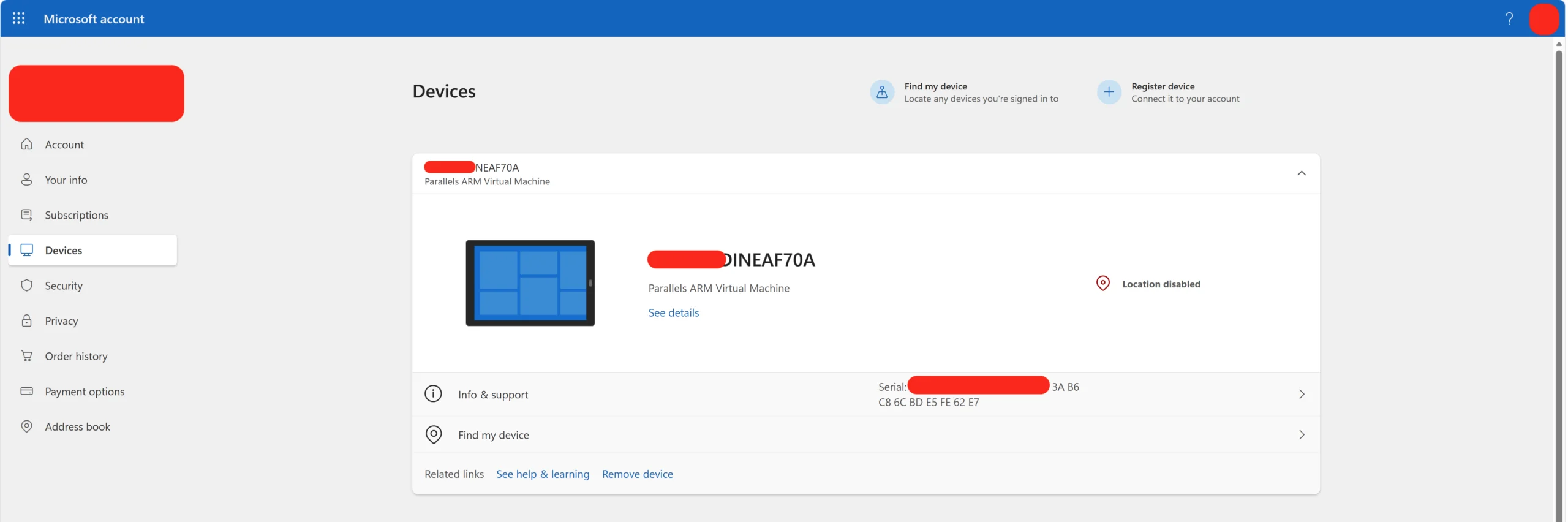
While you are there, clear out the dead entries. Old installs and previous builds leave duplicates behind, and after the hardware swap the troubleshooter asks you to tick “This is the device I’m using right now” from that same list. Readers who skip the cleanup report ticking a machine that no longer exists, then watching the activation fail with nothing on screen explaining why.
Back Up the Drive Encryption Key First
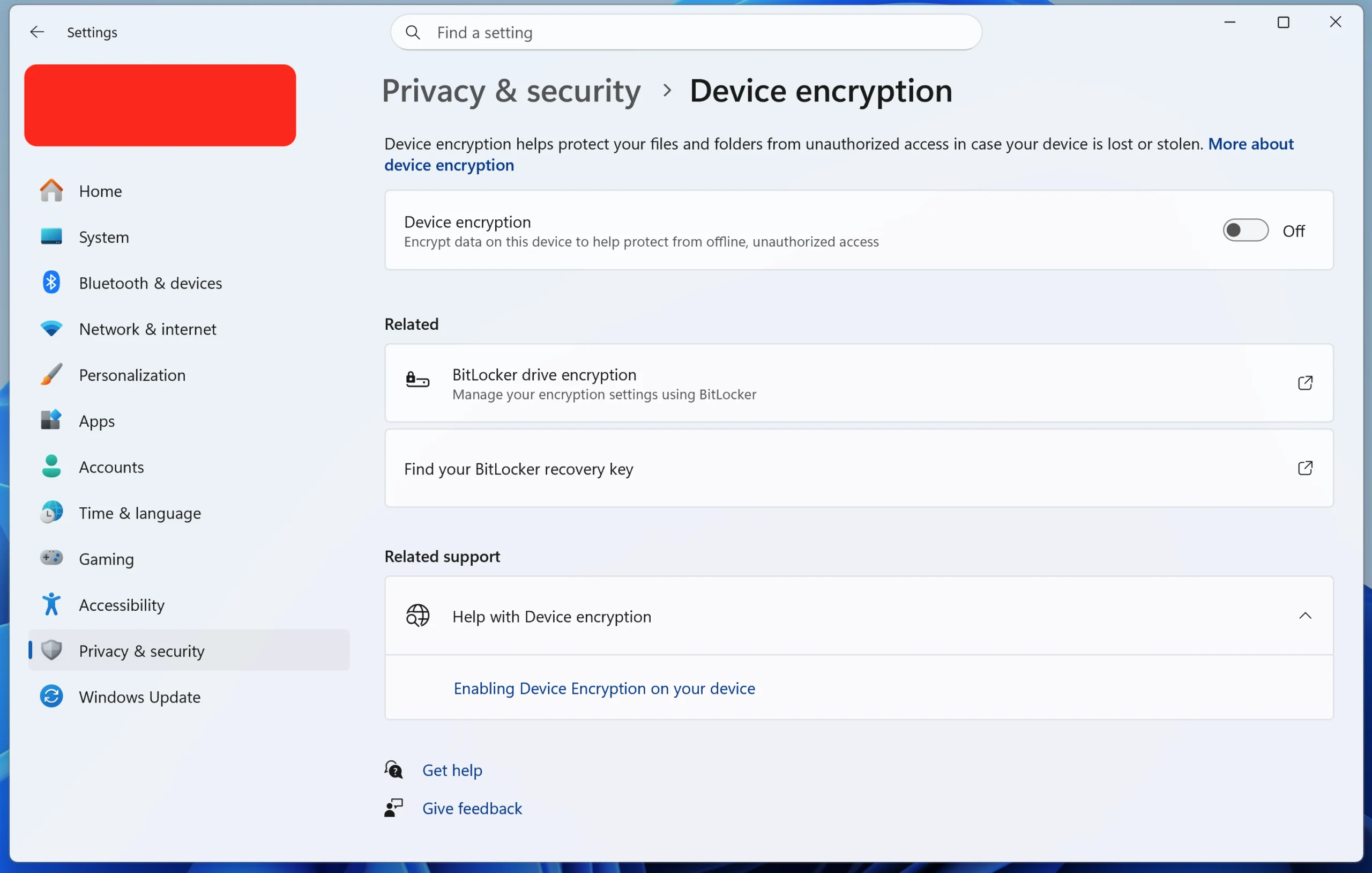
Signing into Windows with a Microsoft account can switch on device encryption. Back up the recovery key before you remove any hardware, not after the PC asks for it.
On recent Windows 11 hardware with TPM 2.0, device encryption is staged during installation and armed the moment an administrator signs in with a Microsoft account. The recovery key is saved to that account automatically. This matters here because the act of linking can be what encrypts your drive, days before you pull the board that holds the unlock key.
Go to Settings, then Privacy & security, then Device encryption. If the toggle is on, back up the recovery key: save it to a file on a separate drive, print it, and confirm it appears in your Microsoft account. A 48-digit prompt on a machine you cannot unlock is a bad time to discover the key was only ever stored on the drive you are locked out of.
Reactivating After the Hardware Change
Two rules decide whether this works. The PC has to be online, and the Windows edition has to match what it was before. Home reactivates as Home, Pro as Pro. Change edition and the license will not take.
Doing a clean install at the same time changes nothing about the license, only the order of events. When setup asks for a product key, choose the option saying you do not have one, install the same edition you had, then sign in with the linked account once Windows is up and online. Activation catches up on its own. If you still need to build the installer, our guide to making a bootable USB with Rufus walks through it, and you can pick up Rufus from the Softoto library page.
When the Link Refuses to Happen
A handful of situations account for most failures.
There is no “Add an account” button. You are either on a local account, in which case use one of the two routes above, or the license is already linked and Windows has nothing to offer you.
The license is OEM. It stays with the device it first activated. Linking helps you reinstall on that same machine without hunting for a key, and it does nothing for a new motherboard. A retail license moves, on one device at a time.
The PC was activated through a volume agreement. Second-hand office hardware often is. That activation cannot be attached to a personal account, and the honest fix is a genuine Home or Pro license.
Then there is the question everyone asks: does the link survive switching back to a local account? Microsoft’s support answers say yes, the association stays with the account and gives it the authority to move the license later. Users report the opposite symptom often enough that it is worth taking seriously, with the Activation page dropping the linked wording and the PC disappearing from the account device list after the switch. Both things are documented, and they contradict each other. Until that is settled, treat the safe version as the rule: keep the Microsoft account administrator on the machine until the hardware change is finished and reactivation has succeeded, then go back to local if you want to.
One more thing, because it circulates widely. You will find advice to enter a generic default product key, let it fail, and rerun the troubleshooter to shake the system loose. It is folklore. On a machine that is currently working it can leave you unactivated with nothing gained, and there is no supported mechanism behind it. If the troubleshooter genuinely cannot find your license, Microsoft’s own notes on reactivating after a hardware change list the remaining paths, and contacting support with your purchase details is the last of them.
Two things are worth watching after this. The devices page is the record, so check it again after any reinstall: a fresh install can register as a separate entry and leave you a list to clean before you need it. And if the local account question ever settles, that page is where you will see it, in whether your PC is still listed a week after you switch back.