SanDisk once sold flash drives that carried their own software platform. Plug a U3 drive into any Windows machine and it opened its own menu and ran programs straight from the stick without installing them. Then SanDisk marked the platform end of life and walked away, leaving no upgrade path for the people who had bought into it. The idea underneath it survived anyway, because the idea was never really about the drive.
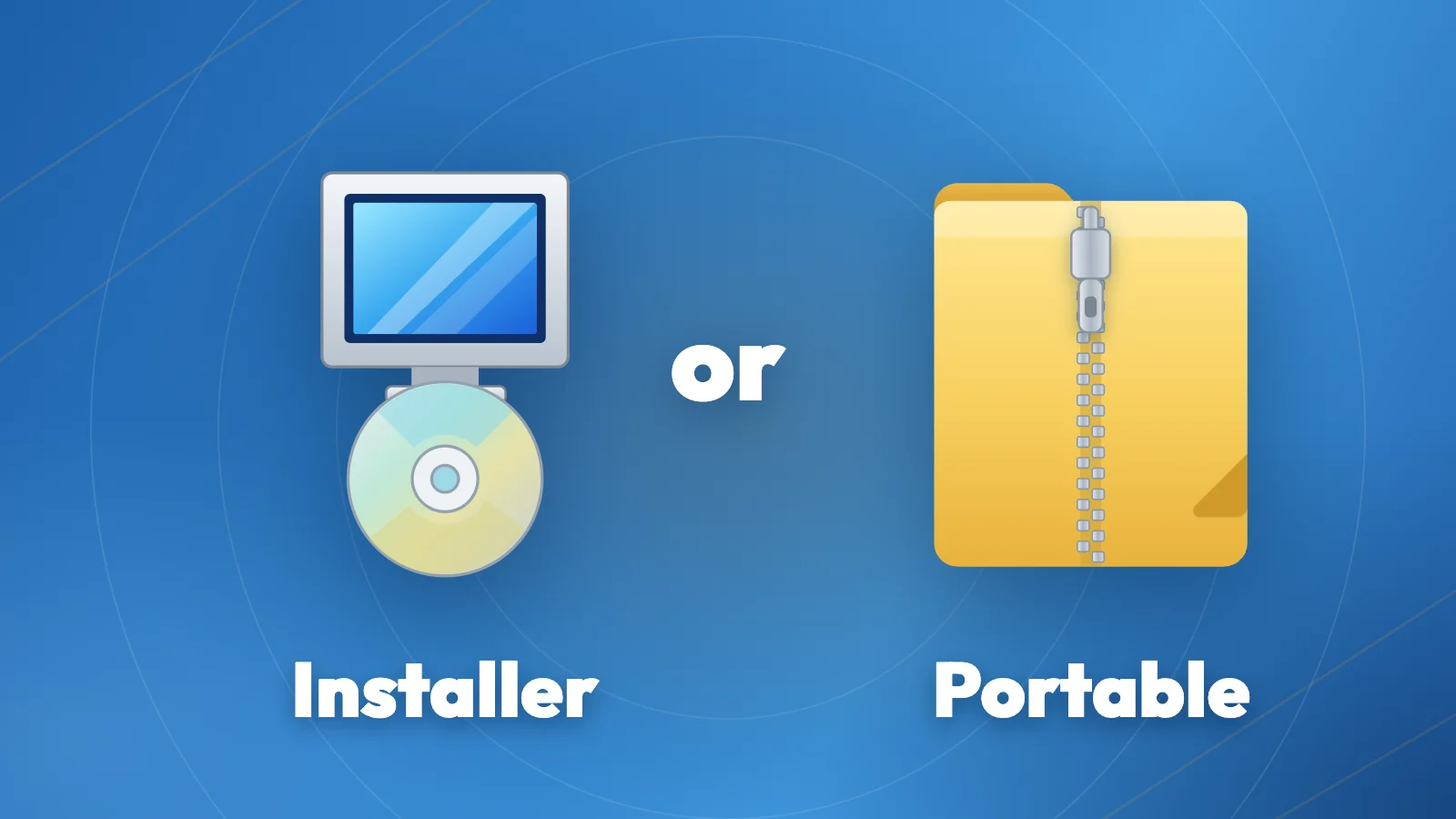
That idea is portable software: a program you copy into a folder, run, and delete when you are done. No setup wizard, no entry in Add or Remove Programs, nothing left behind once the folder is gone. Anyone who has downloaded a ZIP instead of an installer has already met one. The part worth understanding is why a program needs a special version to behave that way, because the answer also tells you when to pick it.
A portable program keeps its files and its settings together in one folder. Copy the folder and the program travels with your settings intact. Delete the folder and it is gone.
What an installer is actually doing
A setup wizard is not ceremony. In the time it takes to click Next four times, it is doing five specific things:
A portable build is the same program with all five declined. That is the entire trade, and it explains every advantage and every annoyance that follows.
You can watch it happen with software you already use. Install 7-Zip and it plants entries in your right-click menu, so extracting an archive takes two clicks from the file itself. Run the portable copy and that menu stays empty: you open the program first, then browse to the archive. How much that costs you depends on how you work, and on which archiver you settled on in the first place, a question our 7-Zip and WinRAR comparison takes apart in more detail. VLC behaves the same way. Its shell integration is an installer option rather than a setting you can switch on later, so a portable copy will happily play a video you drag into it but will never become the default handler for your video files.
Neither behaviour is a bug: the portable build did not fail to integrate, it was built not to.
This also answers the question people ask when they go looking for a portable version and cannot find one. Some programs cannot drop the fourth item on that list. Antivirus software needs a driver sitting underneath the operating system to watch files as they are opened, and backup tools need a service running when nobody is logged in. Virtual machine software and disk encryption tools hit the same wall from a different angle: portable editions of them do exist, but they still need administrator rights to load their drivers, which cancels out the main reason most people reach for a portable build. Where a portable edition of a security program does exist, it is often a scanner or a viewer rather than the full product, so it pays to check which one you actually downloaded.
Why Windows grew a portable scene and macOS did not
On a Mac, an application is already a self-contained bundle. You drag it into Applications, you drag it to the trash, and that is the whole lifecycle. Linux has AppImage doing much the same job. Windows is the system that spreads a single program across Program Files, the registry, AppData, and sometimes ProgramData, which is why Windows is the system where running software without installing it needed a name and a movement of its own.
It is also why that movement grew up around free and open source software. Repackaging a program so it runs from a folder means redistributing it, and what a program’s licence permits decides whether anyone other than the developer is allowed to do that. Paid software usually offers a portable edition only when the developer builds one, which is a second reason, on top of the technical one above, why you will find portable copies of small utilities everywhere and portable copies of large commercial suites almost nowhere.
When portable is the right call
Five situations where the portable build is the better choice, not the compromise:
Notice what these have in common. Every one of them is a case where the five jobs the installer performs are things you do not want done, on a machine that is not really yours to change.
What you give up
Portable builds are described far too often as the tidier option with no downside. There are downsides, and they are worth knowing before you commit a toolkit to a USB drive.
Updates are the real cost. A portable program carries its own copies of the libraries it depends on, because it cannot rely on anything being present on the host machine. When a flaw turns up in one of those shared libraries, an installed program gets patched through its own updater, while every portable copy carrying that library has to be replaced by hand. On small utilities this barely matters. On browsers, which are the most exposed software on any machine, it matters a lot.
Portable is also not a sandbox, and it is not a security feature. Running a program from a folder your own account can write to gives you less protection than Program Files does, not more, which is exactly why corporate IT tends to object rather than relax when it finds a portable browser on a work laptop. The privacy benefit is real and narrow: nothing about your session stays on the host computer. That is not the same as being safe.
A few other catches are worth having in mind. Some portable builds still write a value or two into the registry despite the name, and a few tie licence activation to the machine they are run on, which can collide with an installed copy of the same product. Running from an old or slow USB stick is noticeably slower than running from local storage, and heavy use of a flash drive carries a real risk of corruption if it gets pulled mid write. Portability also cuts both ways: lose the drive, and you lose the programs and their settings in the same moment.
How to decide in ten seconds
The useful question is not which version is cleaner. It is this: what would the installer be doing for me, and do I want those things on this machine? Laid out plainly, the two builds part company in eight places.
| What happens | Installed build | Portable build |
|---|---|---|
| Where the program files sit | Program Files, protected from ordinary accounts | any folder you choose |
| Registry entries | written during setup | usually none |
| Right-click menu and file associations | claimed at install | not claimed |
| Drivers, services and scheduled tasks | possible | not possible |
| Where your settings live | AppData on that machine | inside the program folder |
| Updates | handled by the program’s own updater | you replace the folder yourself |
| Removing it | through the uninstaller | delete the folder |
| Administrator rights | usually required | usually not |
Read that list once and the choice tends to make itself. If it is your own daily computer, running your own software, and you would like updates handled for you and your right-click menu working properly, install it. If the program needs a driver, a background service, or system level access to do its job, install it, and do not think twice. If you are sitting at a machine you do not own, or one you cannot get admin rights on, or you want the job done and every trace of it gone afterwards, take the portable build.
The packaging around all this keeps shifting. The USB stick era has faded, and the same need has moved into synced cloud folders and into tools like Scoop, which installs command line utilities into a user directory without ever asking for administrator rights. That direction is the one to watch, because every few years somebody finds a fresh way to run software on a machine they are not allowed to change, which is the problem U3 was chasing with the wrong hardware. Most of the small utilities worth keeping around come in both forms today. You can browse them in the Tools and Utilities library and take whichever build suits the machine you are sitting at.