Six characters. That is the distance between a Lightshot upload and a stranger reading it, because the share links its host hands out are six-character codes running in sequence, and nothing on the other end asks for a password.
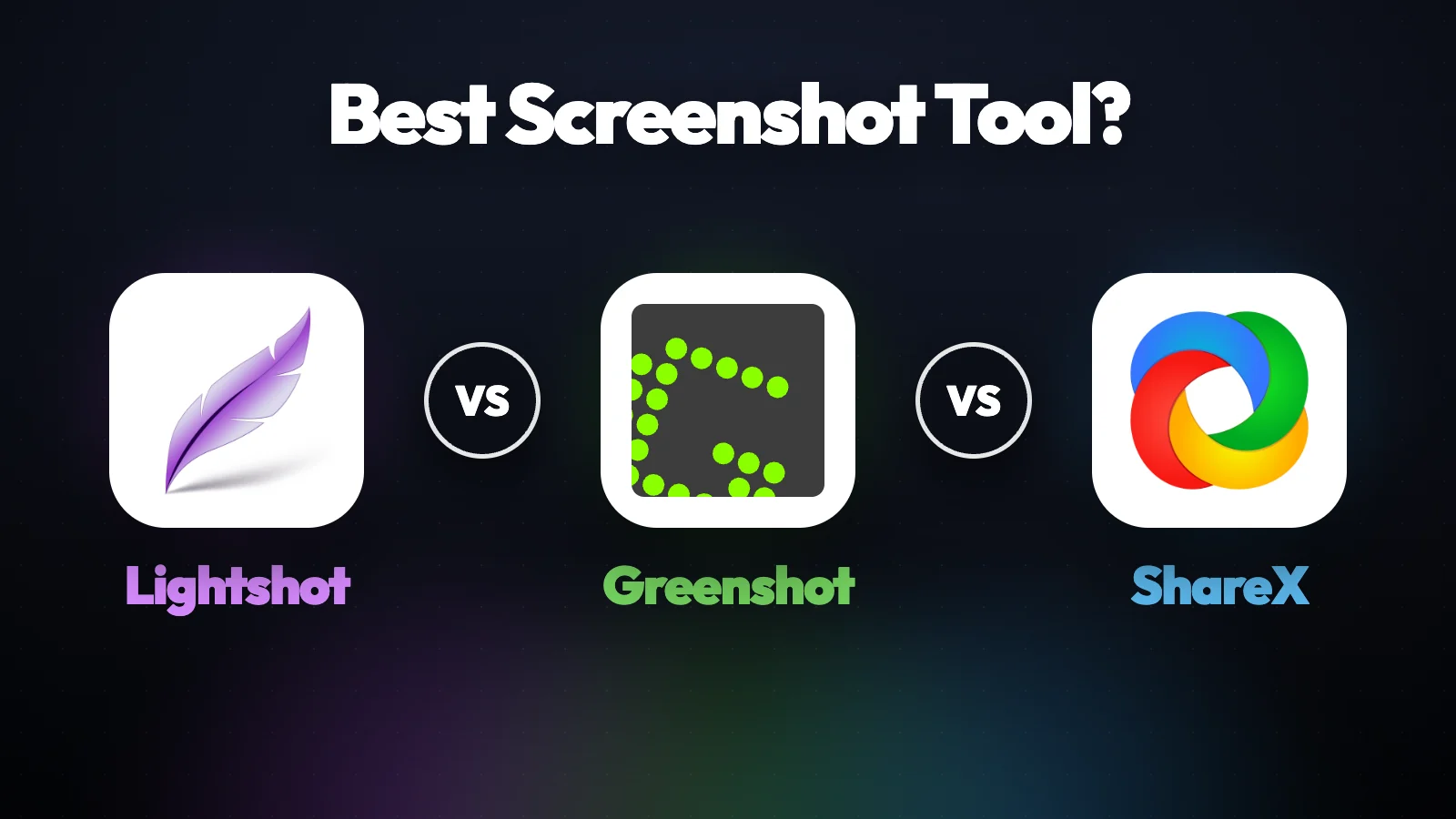
Of the three free capture tools people shortlist when the built-in Windows one runs out of road, ShareX is the one to install. It grabs everything the other two grab and several things they cannot, it can hide an account number before an image leaves your hands, and it sends nothing anywhere until you tell it to. That last clause is the verdict in one line.
Greenshot still beats it outright on a point that matters to a lot of people, and there are two situations where even Lightshot is the sensible pick. Here is how the three were judged, where each one wins, and when to ignore the verdict above.
This is research-based analysis, built from the developers’ own documentation, the projects’ public code and release history, and published reporting on how Lightshot’s sharing service behaves. Where the record contradicts itself, I say so rather than pick the tidier version.
The seven questions behind the verdict
Most comparisons fight over the first two and treat the rest as footnotes. Questions three and four decide more real cases than capture range ever will.
Start with reach. Region, window, monitor, full screen, scrolling pages, screen recording, animated GIFs, text recognition on an image, plus a handful of small utilities that have nothing to do with capture at all. Most captures are a box dragged around part of a window, and any of these three handles that in under a second. The difference shows up on the tenth one: a bug report that needs a fifteen second clip, a terms page four screens deep, a scanned invoice whose text you need as text. ShareX does all three without a second app.
Then the editor. Arrows, text, callouts, cropping, and proper redaction tooling for the parts of a capture that should not travel, which matters more than the feature list suggests once you start sharing images that carry someone else’s data.
Then the part that keeps people: automation. A capture can be renamed by a rule, stamped, dropped into a dated folder, copied as a link and pushed to a destination of your choosing, all from one key. If you file screenshots into tickets or documentation all day, that chain removes several minutes of clicking from every one of them.
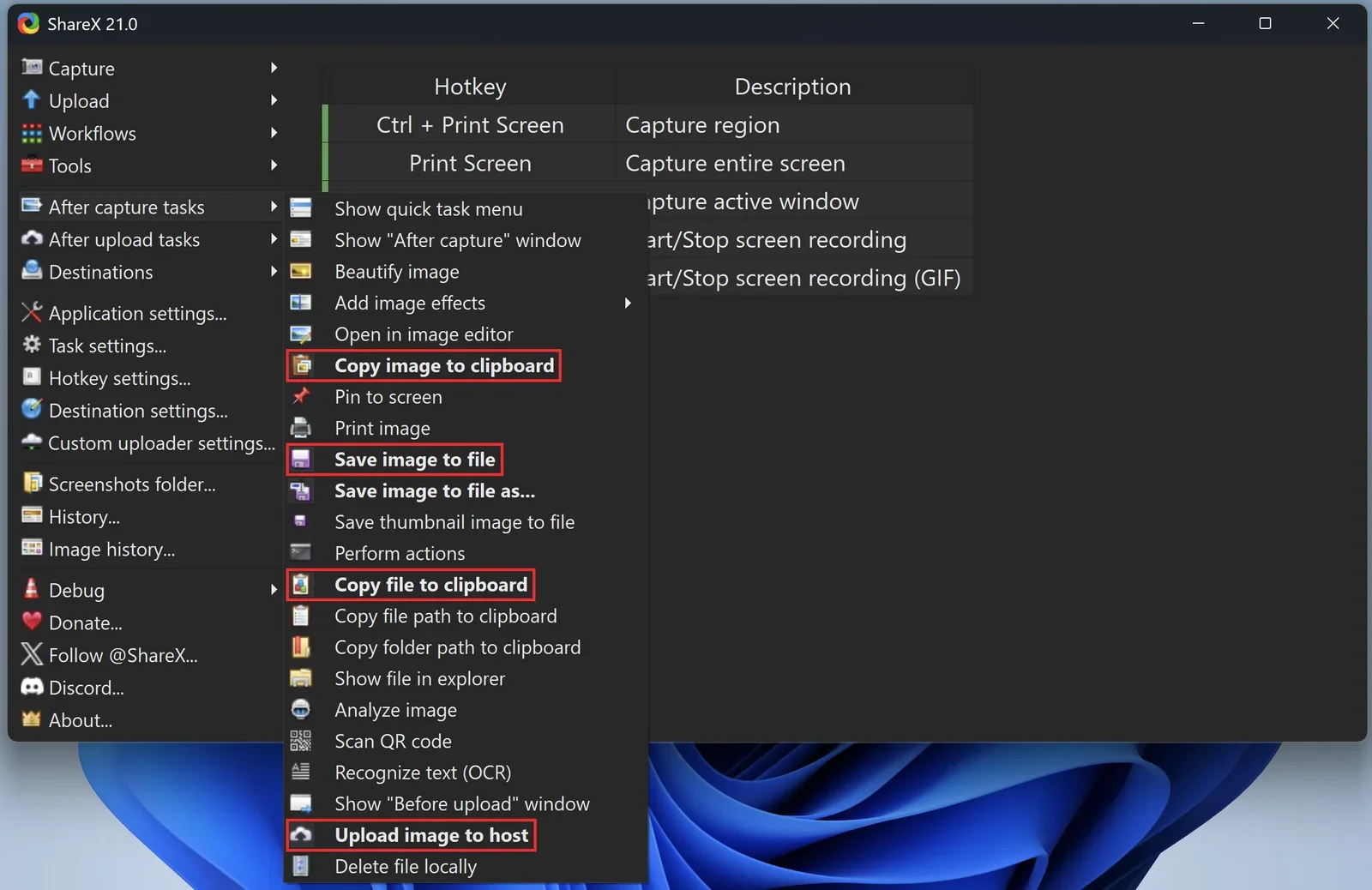
The cost is real and worth stating plainly. The interface is dense, the defaults are conservative, and the complaint that repeats across every independent review is the same one: people quit before the tool starts earning its keep. Budget an evening, not a minute. It is Windows only, with no Mac version.
| Tool | Platforms | Source | Video and GIF | Scrolling capture | Blur or redact | Built-in upload service |
|---|---|---|---|---|---|---|
| Lightshot | Windows, Mac, browser add-ons | Closed | No | No | No | Yes, public by default |
| Greenshot | Windows free, Mac paid separately | Open on Windows | No | Legacy browser path only | Yes | No |
| ShareX | Windows only | Open | Yes | Yes | Yes | No, until you add one |
Where your screenshot goes after you press the key
This is the question that separates these three, and it barely gets a paragraph in most rankings.
Lightshot’s selling point is instant sharing. Capture, click share, get a short link. That link lives on the developer’s public image host, and because the addresses are short and sequential, anyone can walk from one image to the next without knowing any of them in advance. The behaviour has been documented repeatedly by security researchers and reporters, including Kaspersky’s account of the scams built on top of it. The developer does not treat it as a defect. Uploads are public by design and the service says so.
Two details make that sharper than it first sounds. After a capture, uploading is the first button in the row of actions, ahead of copy and save in the same small strip, so a published screenshot and a private one are one careless click apart while you are moving fast. And Lightshot has no blur or pixelate tool at all. The tool most likely to publish your screenshot is the only one of the three that cannot hide anything inside it first.
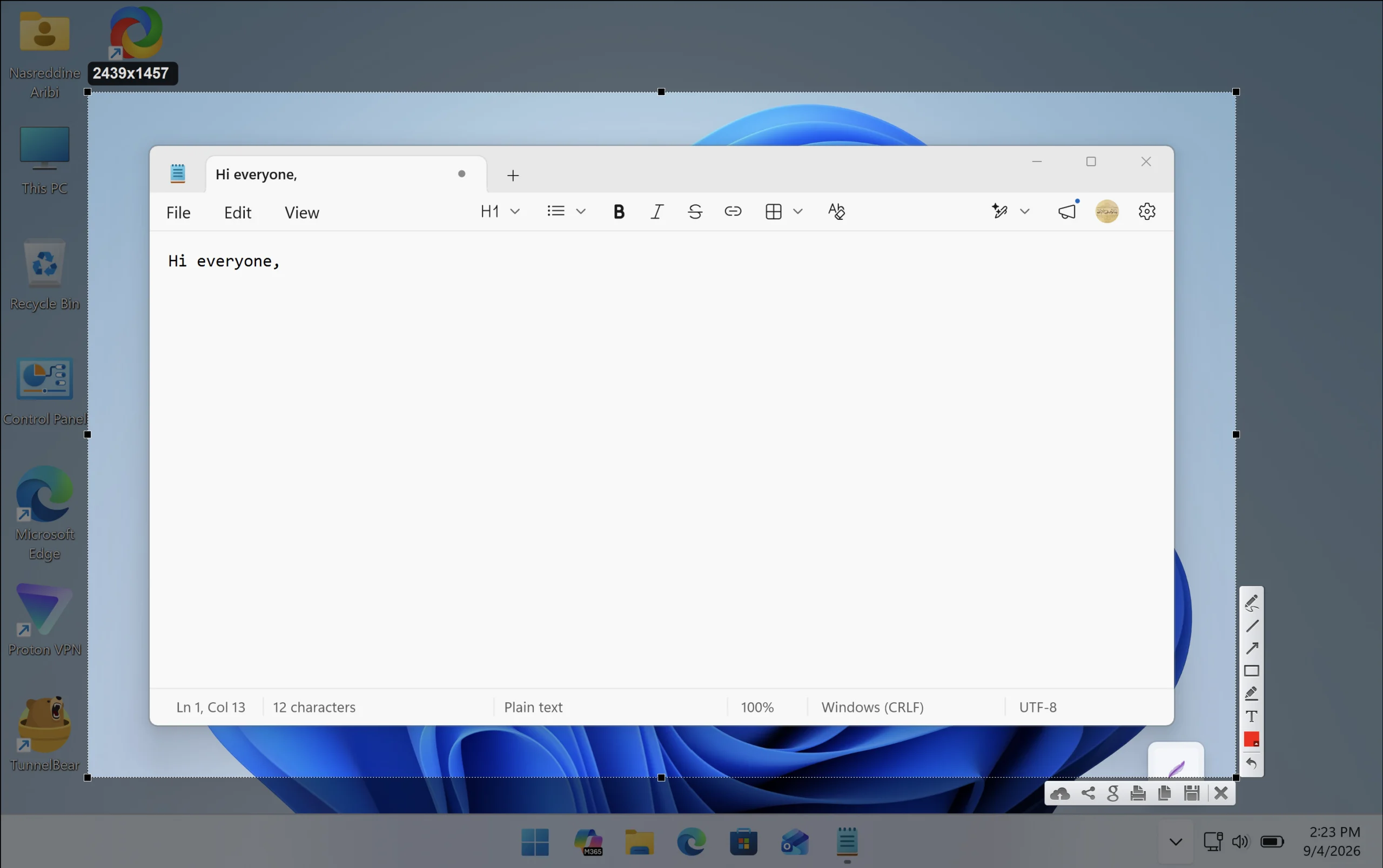
Lightshot uploads land on a public host with short, guessable addresses. Treat anything you upload as published. If you keep the app, use it to save locally and leave the share action alone.
Greenshot and ShareX both start from the opposite position. Neither runs a sharing service, so nothing travels anywhere until you connect a destination yourself. Greenshot exports to a file, the clipboard, a printer, an email or an Office document. ShareX will upload to a long list of destinations, every one of them something you added on purpose. Both can obscure a region before the image goes anywhere.
If you handle anything that belongs to someone else, customer records, invoices, internal dashboards, this section is the whole comparison. One of these three publishes by default and cannot redact. The other two do neither.
There is a cleaner way to frame the choice than trusting yourself to be careful. Decide first whether you want a capture tool or a publishing tool, then pick the one that matches. ShareX and Greenshot make that a deliberate decision you configure once. Lightshot makes it a reflex you repeat all day, and reflexes are where mistakes live. That is not a knock on the people who use it. It is an argument about which tool should be sitting on the Print Screen key of a machine that sees other people’s data.
Where Greenshot beats the winner
Greenshot wins on the thing ShareX is worst at. It takes over the Print Screen key during install and from that moment behaves the way most people already expect a capture tool to behave: press, drag, annotate, export, gone. There is no configuration evening because there is almost nothing to configure, and it asks less of an old laptop than ShareX does.
Its export list is built for a specific kind of work, too. Straight into a Word document, an open email, the printer, the clipboard, a file named by a pattern you set once. If your screenshots end their lives inside documents and tickets rather than inside chat threads, that path is shorter in Greenshot than it is in a tool built around upload destinations, and the shorter path is the one you keep using six months later.
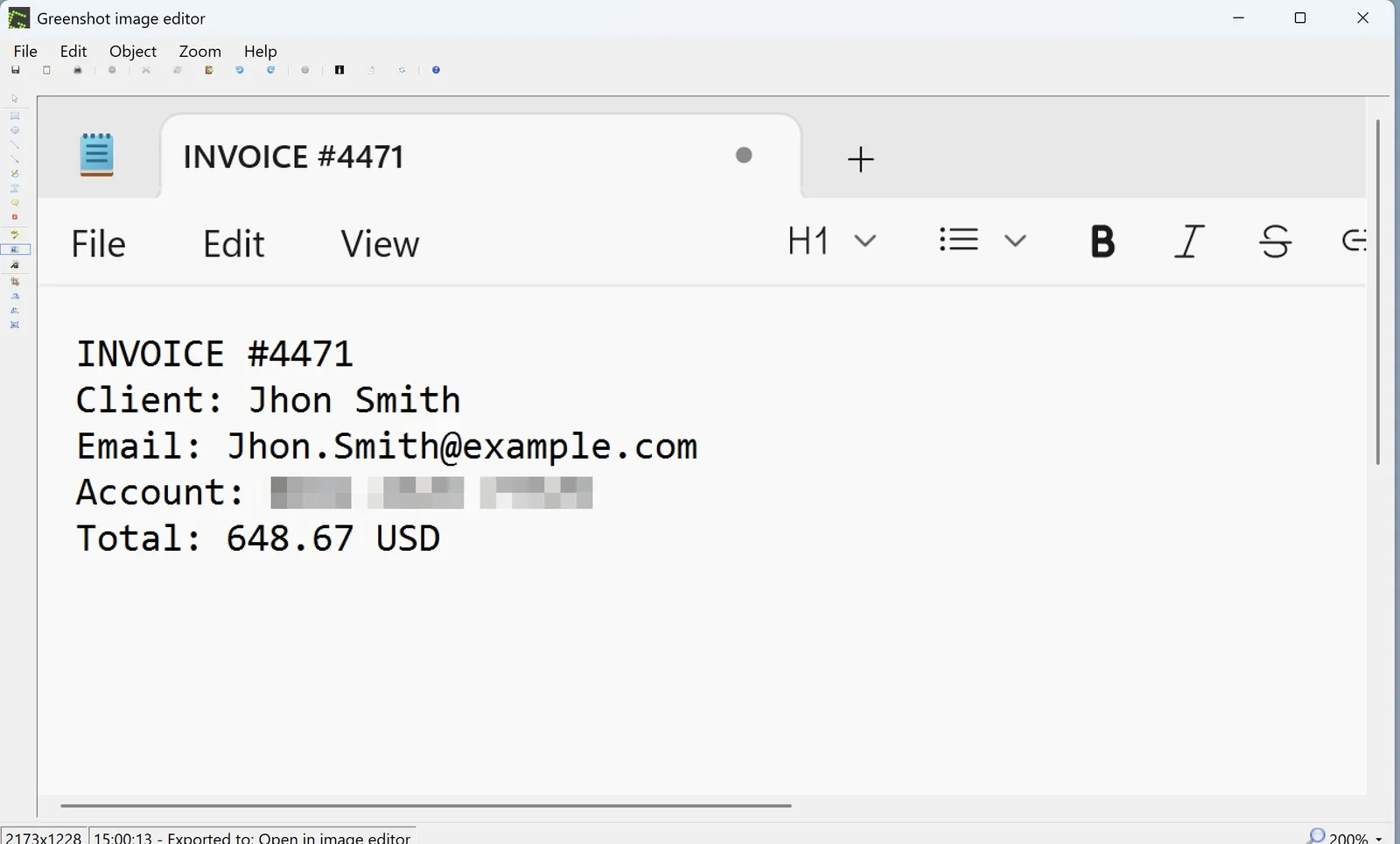
Two things about it are worth knowing before you commit. The Mac version is a separate paid product with closed code, so the free and open description travels only as far as Windows. And the widespread belief that the project went quiet is out of date. Maintenance resumed, security fixes have shipped in the current line, and the project’s own release notes document both those fixes and the next generation of its capture engine in development. Plenty of comparison articles still describe it as abandoned software. It is not.
What the simplicity costs you is video, GIFs, and reliable scrolling capture, which in the shipping line still runs through a legacy browser path almost nobody uses. That gap is the one most likely to close, given where development is pointed.
The case for the other two
Pick Greenshot if you want the Print Screen key to work better and you are never going to open a settings panel. It captures, it annotates, it exports, it stays out of the way. You lose recording and tall-page capture. For most people writing tickets and documents, that loss costs nothing, and the tool you actually use beats the tool you meant to configure.
Pick Lightshot in one of two situations. You are on a Mac, where ShareX does not exist, Greenshot wants money, and Lightshot is free. Or you already love its speed and are willing to run it as a local-only tool with the share action untouched. It also carries browser add-ons, so if most of what you capture lives in a tab, the grab happens without leaving the browser. Used that way it is a decent quick-grabber. Used the way it is advertised, it is a publishing tool that cannot blur a single thing before it publishes. One more thing on it: its Windows installer has historically carried an optional extra offer alongside the app, and the record disagrees about whether current builds still do, so read the installer screens instead of clicking through them. Taking the genuine build from the Lightshot download page here saves you hunting for it.
For everyone else on Windows, spend the evening. Grab the ShareX download page, bind one hotkey to one chain, and screenshot tools stop being something you think about.